Remote Control
Viewer toolbar
Every button on the Cloud Phone viewer toolbar: refresh, mute, unlock, rotate, Picture-in-Picture, resize, reboot, and the 360P to 2K resolution chips.
4 min read
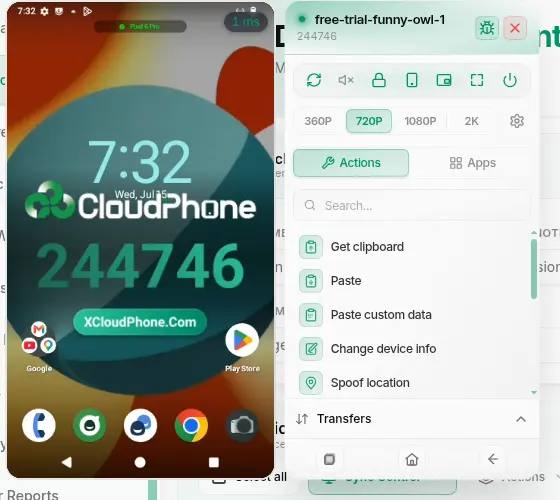
Once the viewer connects, the control panel appears alongside the video. On desktop it is a vertical column with the device name at the top, a row of primary controls, a row of resolution chips, a search box, the Actions menu, the Apps list, and three Android navigation buttons pinned to the bottom. This page covers the primary controls, the resolution chips, and the navigation buttons. The other sections are documented separately.
Primary controls
The primary controls sit in a single row right under the panel header, in this fixed order from left to right: Refresh → Mute/Unmute → Unlock screen → Rotate → Picture-in-Picture → Resize screen → Reboot.
All buttons (except Refresh) are disabled while the cloud phone is not connected.
Refresh
Tooltip: Refresh.
Restarts the video stream without rebooting the cloud phone. Use it when the image freezes, stutters, or goes black even though the phone is still running. It works even while the connection is flapping.
Mute / Unmute
Tooltip: Mute when audio is playing, Unmute when muted. While muted the viewer shows a Muted badge.
This button controls playback volume in your own browser, NOT the volume inside the Android device. Muting here only silences your computer's speakers: apps on the cloud phone keep playing audio normally. Hover the button to open the Volume popover with a slider. The viewer starts muted by default (browser autoplay policy), and the mute state is remembered per device.
To change the actual volume inside Android, use the volume slider of the app running on the device, not this button.
Unlock screen
Tooltip: Unlock screen.
Sends an unlock signal when the cloud phone is at its lock screen, the equivalent of swiping up on a physical phone. It does not bypass PIN, password, or fingerprint locks, only the swipe-style lock screen.
Rotate
Tooltip: Rotate to landscape when in portrait, Rotate to portrait when in landscape.
Switches the phone between portrait and landscape. Some apps only render correctly in one orientation, and games in particular often require landscape.
Picture-in-Picture (PiP)
Tooltip: Enter Picture-in-Picture or Exit Picture-in-Picture. If the browser does not support PiP, the button is disabled and the tooltip reads Browser does not support Picture-in-Picture.
Shrinks the viewer into a floating window on your desktop via the Document Picture-in-Picture API. You keep an eye on the cloud phone while working in other windows, which is handy for watching a game grind away AFK.
PiP requires the Document Picture-in-Picture API. Recent Chrome and Edge support it; Safari and Firefox currently do not.
Resize screen
Tooltip: Resize screen.
Opens a popover with a slider that changes the size of the viewer window, plus Cancel and Apply buttons. Apply only activates once you move the slider. This is the size of the window on your computer, a different thing from the resolution of the video stream covered below.
Reboot
Tooltip: Reboot.
Opens a confirmation modal titled Reboot Device: "The device will restart. Any ongoing actions will be interrupted. Continue?". Click Reboot to confirm or Cancel to back out. The viewer then shows the toast "Rebooting device...".
Reboot from the viewer and from the device card on My Devices are the same action. A reboot usually takes at least 3 minutes.
Resolution chips
Directly below the primary control row is a row of four resolution chips: 360P / 720P / 1080P / 2K, defaulting to 720P. The group tooltip reads Adjust image quality. The active chip is highlighted, and the row is disabled while the device is not connected.
| Preset | Pick it when |
|---|---|
| 360P | Weak network, mobile data, or several devices at once. Smoothness over sharpness. |
| 720P | The default. Balanced for most work. |
| 1080P | Reading small text, inspecting UI detail, or playing a game. |
| 2K | Strong connection and you want the sharpest picture. |
Switching takes effect immediately, with no reconnect.
This chip row only appears if your cloud phone supports it. Some devices do not advertise the capability, so the viewer hides the row entirely.
Settings and Report a problem
The Settings button (gear icon) sits at the end of the resolution chip row and opens Viewer preferences: the Stats overlay (ping) toggle, your Quality preference, and the Decode path. If your picture is black or choppy, start here: see Troubleshoot viewer connection.
The Report a problem button (bug icon) sits in the panel header. Click it to report a faulty device.
Android navigation buttons
These three buttons live at the bottom of the panel and mirror the navigation keys on most Android phones. The order from left to right is Recent apps → Home → Back.
| Tooltip | Equivalent |
|---|---|
| Recent apps | Recents button, see running apps |
| Home | Home button, go to launcher |
| Back | Back button |
All three buttons are disabled while the cloud phone is not connected.
Tap Recent apps, then swipe sideways on the video to switch between open apps inside the cloud phone. Faster than going home and reopening from the launcher.