Automation
Blocks that tap, type and swipe
Click, Type text, Swipe, Drag & drop and the rest: coordinates versus elements, why swipes use % of the screen, and why a drag sometimes does nothing.
7 min read
These nine nodes are the hands of a flow: they tap, type, swipe, drag and turn the screen. Everything else decides whether something happens; these decide what happens on the glass. Most of them are in the INTERACTION group of the node library; the two that are not say so where they come up.
First decision: a coordinate, or an element
Almost every node here asks How to locate the target, and the hint explains the choice in plain words: "An element is one thing on the screen (a button, an input, a line of text). Either tap a fixed coordinate, or let the device find the element and tap it."
A coordinate is a fixed point. It is quick to set and it breaks the moment anything moves — a banner appears, the account name is longer, the phone is a different size. An element is described by what it is, so the phone finds it wherever it ended up.
Use elements unless you have no choice. How to discover what an element is called is covered in Find elements with the UI Inspector, and how to describe one in Match an element on screen. Checking that an element is actually there before you tap it is a separate job, done by the nodes in Blocks that read the screen.
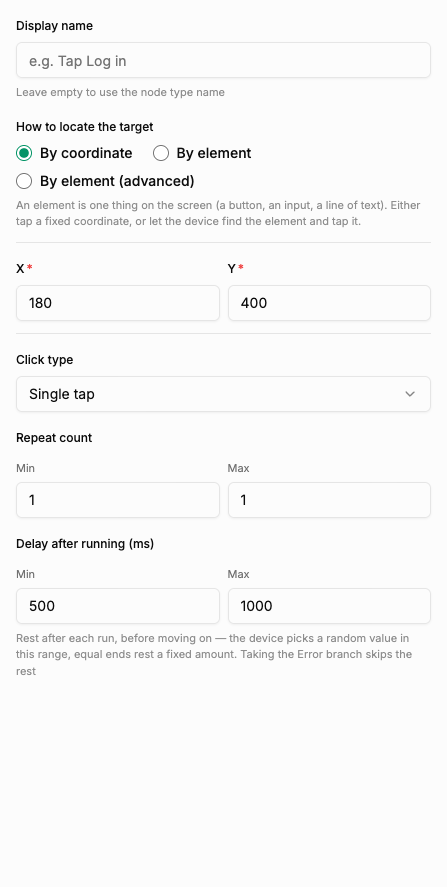
Two settings you will meet again and again
Many of these nodes carry the same two extras, and both are worth understanding once.
Delay after running (ms) — "Rest after each run, before moving on — the device picks a random value in this range, equal ends rest a fixed amount. Taking the Error branch skips the rest". This is usually better than a separate Wait node, because the pause belongs to the action that needed it.
Retry on error, with Retries and Rest between tries (ms) — "Fail → rest this long → try again. Only after the last try does the node take the Error branch".
Retries multiply time, and the hint does the arithmetic for you: "Number of RETRIES, not counting the first run (total runs = value + 1). Worst case = node timeout × (retries + 1) + rest × retries — a 15 s timeout with 5 retries is over a minute."
One node set up like that eats a minute of your 30-minute run. Put it inside a loop and you can burn the whole budget on a single step — see the TIMEOUT warning in Blocks that steer the flow.
Click
Click taps. Beyond the target, three fields matter.
Position decides which one when several things match: "If several elements match, pick which one — counting from 0. Empty means the first one." The third row in a list is Position 2, not 3.
Repeat count presses more than once, and Click type chooses the kind of press.
Random offset is the interesting one, and it is worth reading the whole hint: "How far the tap may stray, as a percentage of the element's size: the point lands anywhere within ±(% × half the width) of the centre. 0% always taps the centre, 100% lands anywhere inside the element — never outside it. Repeated taps pick a fresh point each time. Coordinate mode is always 0%."
So it never misses the button. It only stops every tap landing on the exact same pixel, which is what a human never does. Note the last line: if you tapped by coordinate, this setting does nothing.
Type text
Type text puts characters into a field, and its one big trap is in the Input box (optional) hint:
"Tap here before typing. “None” = type into whatever is focused — click the box yourself first, or the text goes nowhere. If a selected element isn’t found before the timeout, the Error branch runs".
This is the most common way a flow silently does nothing useful. Either pick the input box in this node, or make sure a Click landed on it first.
Clear the field before typing wipes what was there — turn it on when a field may already hold a previous value.
Delay between characters (ms) decides how the text arrives: "Set 0–0 to paste the whole string at once; a wider range types character by character so it looks human". Pasting is fast; character-by-character is slower but looks like a person at a keyboard.
Swipe
Swipe scrolls the screen in a direction. The distance is not in pixels:
Swipe distance (% of screen) is "Measured as a percentage of the screen, so the same swipe works on every device regardless of resolution". This is why you should never translate a swipe into pixel numbers — 50% is half the screen on every phone you will ever run it on.
Swipe duration (ms) — "Slower swipes look more human. The device picks a random value in this range".
Swipe count repeats the gesture, and Rest after each swipe (ms) puts a random gap between them — "the last swipe rests too".
Swipe until found
Swipe is a blind gesture; Swipe until found has a goal — which is why the library files it under ELEMENTS rather than with the other gestures. Its whole job is to "Keep swiping until the element shows up or the swipes run out". Use it whenever the thing you want is somewhere further down a list and you do not know how far.
Most swipes is the ceiling: "Once these run out with nothing found, the flow takes the “False” branch". That is a normal outcome, not an error — wire the false branch to whatever "it is not in the list" should do.
Its swipe distance defaults lower than the plain Swipe node on purpose: "Default 30 — lower than the Swipe node, so a step can’t jump past the element it is looking for". And it checks after resting: "Swipe, rest a random amount picked in this range, then check for the element".
Drag & drop
Drag & drop moves something from one place to another. Drag from and Drop at each "Pick by coordinate or by an element on screen", so you can drag one element onto another.
Press and hold before dragging (ms) is the field that decides whether it works at all:
"Hold still at the pick-up point this long before the drag starts; the device picks a random value in this range and adds no hidden jitter. Many apps only treat it as a drag after ≥500 ms — 0–0 starts dragging straight away."
If a drag does nothing in an app that clearly supports dragging, this is the first field to raise.
Drag duration (ms) covers the travel: "A longer drag looks more like a real one".
Press key
Press key presses a hardware key — "Back, Home, Enter, Del…" — and it is often the shortest way past a screen. Back dismisses a dialog without hunting for its close button. Enter submits a form without finding the submit button at all.
Repeat count presses the same key several times in a row, and the hint gives the exact use: "Deleting 5 characters is the Del key, count 5–5".
The keyboard pair
The on-screen keyboard covers the lower part of the screen, and it takes whatever is underneath with it.
Hide keyboard closes it. Reach for it right after a Type text, before you try to tap a button near the bottom.
Keyboard open? branches on whether the keyboard is showing. Use it when you are not sure of the state — for example, a flow that arrives at the same screen from two directions and only sometimes has the keyboard up.
Rotate screen
Rotate screen, in the DEVICE group of the library, puts the display into a fixed orientation via Screen orientation. Use it for apps and games that only behave in landscape.
Orientation changes what a coordinate points at. Any step tuned by coordinate in portrait is aiming at a different part of the screen once you rotate. One more reason to target elements rather than points.
Summary
- Target elements, not coordinates, and only fall back to a coordinate when there is nothing to match.
- Delay after running and Retry on error appear on node after node — and retries multiply: a 15-second timeout with 5 retries is over a minute out of a 30-minute run.
- Type text with the input box set to "None" types into whatever is focused, so click the field first, or nothing lands.
- Swipes are measured in % of the screen, which is what makes one flow work across different phones. Swipe until found runs out into the false branch, not an error.
- A drag that does nothing usually needs a longer Press and hold before dragging — many apps want at least 500 ms.