Remote Control
Viewer actions menu
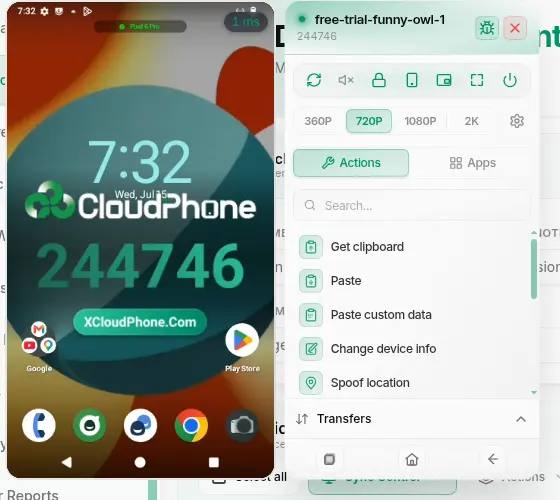
The Cloud Phone viewer Actions list: clipboard, change device info, root, spoof location, install APK, import files, proxy, screenshots and the Transfers tab.
4 min read
Below the primary controls and the search box, the viewer has an Actions list holding the advanced tasks you can run on the cloud phone. Each entry is a button row with its own icon, in a fixed order. This page walks the list in the order you see it, plus the Transfers tab where screenshots and files land once an action finishes.
Finding an action fast
The search box above the list filters entries by name. Matching is fuzzy and diacritics-insensitive, so a rough guess still lands: type gps to reach Spoof location, root for the Root row, or get clip for Get clipboard.
If the cloud phone drops offline mid-way, the action stops and the viewer reports "Operation failed - the connection was lost. Please try again." Wait for the device to reconnect, then run it again.
Clipboard
Get clipboard
Reads the cloud phone's current clipboard and copies it to your computer's clipboard. The toast Copied device clipboard appears once it is done.
Paste
Reads your computer's clipboard and pushes it straight into the focused field on the cloud phone. If the browser asks for clipboard permission, accept it the first time.
Paste custom data
Opens the Paste Custom Data dialog with a text box (placeholder "Enter text to paste..."). Type or paste your content, then click Paste to send exactly that string to the device, bypassing the system clipboard. Cancel discards it.
Useful for long strings such as codes, URLs, or boilerplate you would rather not put on your own clipboard.
Device identity
Change device info
Opens the Spoof device info modal, subtitled "Set the device's build & hardware identity." It has two tabs:
- Random: roll a completely new device identity.
- Select: pick a ready-made Preset, or go Custom field by field.
Inside are two groups of fields, Device info (the build) and Hardware IDs. You can Randomize a single field or Regenerate all.
Clicking Apply asks you to confirm with Change device info?: "Applying will reboot the device. Ongoing actions will be interrupted. Continue?". Click Apply & Reboot to go ahead.
Applying reboots the cloud phone. Save any work in progress first: the new identity only takes effect once the device finishes booting.
Field-by-field detail: Device identity.
Root
The row directly below Change device info. Its label tracks the state: Root: checking, Root enabled, or Root disabled. Turning root on or off requires a reboot either way.
Only shown if your cloud phone supports it. See Root.
Spoof location
Sets a fake GPS location using a map or raw coordinates. While active, the row is highlighted in green.
Only shown if your cloud phone supports it. See Spoof location.
Apps and files
The two entries below carry a > chevron: hover a row to open a side menu and pick the source.
Install APK
- Install local APK: pick an APK from your computer, upload it, and install it on the device.
- Install cloud APK: install an APK straight from your Files Manager storage.
Import file
- Import local file: upload any file (photo, video, document) from your computer into the device's storage.
- Import cloud file: move a file from Files Manager straight onto the device, no local download needed.
To push content to many phones, upload it to Files Manager once, then run Import cloud file on each viewer.
Proxy
Connect proxy attaches the cloud phone to the proxy assigned to this rental session. If the session has no proxy yet, assign one from My Devices first. Disconnect proxy drops it, and the phone falls back to the server's default IP.
Screenshot
Captures the cloud phone's current screen. The image is not downloaded straight to your computer: it shows up in the Transfers tab with a Screenshot ready badge, and you download or copy it from there.
Factory reset
This row sits on its own at the bottom of the list, below a dashed red divider marking it as destructive.
Clicking it opens a red Factory Reset modal: "Are you sure you want to factory reset this device? This action cannot be undone and all data will be lost.". Click Reset Device to confirm. The viewer shows the toast "Factory resetting device..." and the phone reboots to its factory state.
This cannot be undone. Every installed app, signed-in account, and file on the cloud phone is permanently gone. The reset takes about 10 minutes.
Transfers tab
The Transfers tab collects the results of screenshots and file transfers. When empty it reads "No transfers yet" with the hint "Screenshots and files will show up here."
Each item shows its own state: Uploading…, Downloading…, Preparing…, Failed, or Imported to device.
Depending on the item you get Copy, Open in new tab, Download, Reveal, Dismiss, and Retry when something failed. Clear all empties the list.
This is temporary data. The tab keeps only the 10 most recent items and loses everything when you reload the page. The ⓘ button spells it out: "Temporary data: shows the 10 most recent items. Clears on reload." If you need a screenshot, download it right away.