Getting Started
Sign up for an account
Create your xCloudPhone account with Google, complete your profile, and claim 2 free trial hours. Turn off your VPN first so your wallet currency is right.
4 min read
This page takes you from nothing to a working xCloudPhone dashboard. New accounts are created with Google, it takes under a minute, and you get 2 free trial hours to rent your first device without topping up or a card.
Turn off your VPN and proxy before you sign up. Your wallet currency (VND or USD) is decided by your IP address at the moment of registration and cannot be changed later from the dashboard. Registering through a VPN can lock you into the wrong wallet and cut you off from the top-up methods you use. Read Wallet currency is locked by your signup IP before you go further.
Signing up with Google
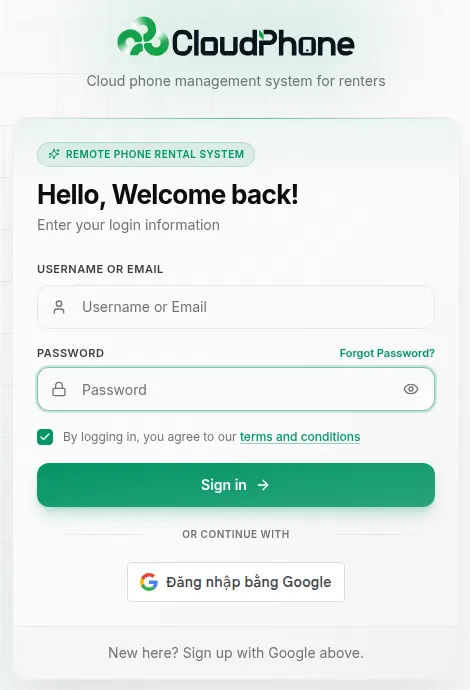
Google is the only way to create an xCloudPhone account. There is no email-and-password registration form: on the log-in page, where the "Sign up" button used to be, you'll now see the line "New here? Sign up with Google above."
That's deliberate. Routing sign-ups through Google keeps out most throwaway accounts and bulk registration bots, so our device inventory stays available for real users. It's also one less password to remember.
Username and password log-in still works normally for accounts that already have a password. Only creating a new account goes through Google. See Log in.
Before you start
- A Google account you'll keep long term. It becomes the only key to your xCloudPhone account.
- VPN and proxy fully switched off, including any proxy extension in your browser.
- A browser that allows Google's pop-up window.
Step by step
Turn off your VPN and proxy, then open the xCloudPhone log-in page.
Click Sign in with Google, below the "Or continue with" divider.
Pick the Google account you want to use in the Google window that opens.
Grant xCloudPhone basic access. Google only asks once, then sends you back and your account is created.
You land straight on the profile completion page.
Google accounts skip email verification: Google has already verified your address.
Complete your profile
Right after your account is created, xCloudPhone shows "Complete Your Profile" with the line "Please complete your profile information to continue". There's just one step, Personal Information:
| Field | Required | Notes |
|---|---|---|
| First name | Yes | Your given name |
| Last name | Yes | Your family name |
| Username | Yes | Used to log in, and how others share devices with you |
| Country | Yes | Pick from the list |
| Phone | No | Helps support reach you when needed |
Submit it and you're in the dashboard. No billing address step, no password field. More detail in Complete profile.
Pick a short, memorable username. It's the name other people type when they want to share a device with you.
Your 2 free trial hours
Every new account starts with 2 trial hours, credited as Promo Hours. You'll see them on the "Promo" badge in the header, with the tooltip "Promotional hours - can be used to rent selected plans".
No card, no deposit. When you rent, pick Promo Hours instead of Balance under Payment Method in the Rent Device modal. This works on plans carrying the "Supports Promo Hours" badge. Every credit and deduction shows up on the Free Hours History page.
Promo Hours and vouchers can't be combined in the same rental. Use one or the other.
Google accounts have no password
An account created with Google has no xCloudPhone password. That's why Profile → Security doesn't show "Change password" or "Two-Factor Authentication": with no password there's nothing to change, and nothing for a second factor to sit behind.
Your account security lives in your Google account instead. Turn on 2-Step Verification there: whoever can open your Gmail can open your xCloudPhone.
Common issues
There's no Sign up button on the log-in page
Working as intended. New accounts are created with the Sign in with Google button, and there's no separate form.
The Google window never opens
Your browser is blocking pop-ups. Allow pop-ups for the xCloudPhone domain and click again, or try a different browser.
Google errors out or loops back without signing me in
Usually a VPN or a wrong system clock. Turn off the VPN, set your clock to automatic, clear the site's cookies and retry.
I signed up with my VPN on by mistake
Your wallet may be stuck on the wrong currency, and you can't switch it from the dashboard. Contact support before you top up.
I already have an old password account
Keep signing in with your username and password as before. Existing accounts are unaffected.
What to do next
Turn on 2-Step Verification for your Google account, since that's what really protects your xCloudPhone access.
Open the Rental Store and spend your 2 promo hours on a first device.
Link Telegram under Profile → Notifications so you get a heads-up before a rental expires.