Tài khoản
Đăng nhập
Cách đăng nhập xCloudPhone: tài khoản mới dùng Google, tài khoản cũ vẫn đăng nhập bằng username và mật khẩu. Kèm xử lý lỗi và các bước sau đăng nhập.
3 phút đọc
Trang đăng nhập là cửa ngõ vào xCloudPhone. Có hai cách vào, nhưng chúng dành cho hai nhóm người khác nhau: tài khoản mới đăng nhập bằng Google, còn form username và mật khẩu dành cho những tài khoản đã có mật khẩu từ trước.
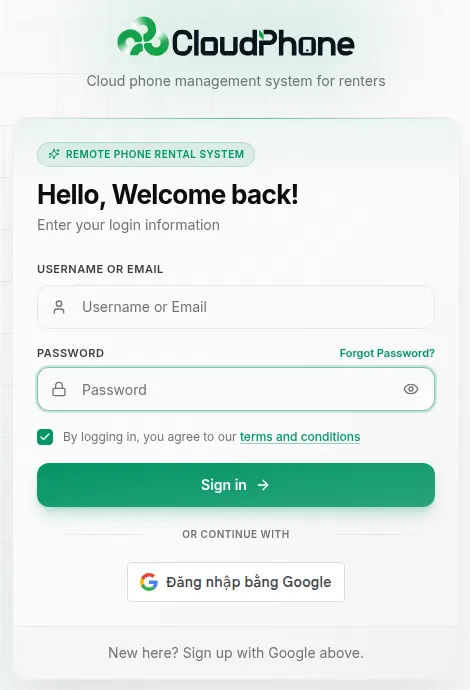
Nếu bạn chưa có tài khoản, hãy dùng Đăng nhập với Google. Hệ thống không còn form đăng ký bằng email và mật khẩu, nên bạn sẽ không tự tạo được username/mật khẩu để điền vào form bên trái. Dưới form đăng nhập có dòng nhắc: "Chưa có tài khoản? Đăng ký bằng Google phía trên." Xem Đăng ký tài khoản.
Cách đăng nhập
Dành cho mọi người dùng mới và cho những ai đã tạo tài khoản bằng Google.
Bấm Đăng nhập với Google trên trang đăng nhập.
Chọn tài khoản Google bạn muốn dùng.
Cấp quyền cho xCloudPhone nếu là lần đầu. Hệ thống tự động đưa bạn về dashboard.
Lần đầu đăng nhập, bạn sẽ được yêu cầu hoàn tất hồ sơ trước khi vào dashboard.
Chỉ dùng được nếu tài khoản của bạn đã có mật khẩu, tức là tài khoản tạo từ trước khi đăng ký bằng email đóng lại.
Mở trang Đăng nhập.
Nhập Username (hoặc email) và Mật khẩu.
Tick vào ô "Tôi đồng ý với Điều khoản & Chính sách bảo mật".
Bấm Đăng nhập. Nếu thông tin đúng, hệ thống chuyển bạn vào dashboard.
Tài khoản Google không có mật khẩu nên không đăng nhập được bằng đường này.
Bạn không chắc tài khoản của mình thuộc loại nào? Vào Hồ sơ → Bảo mật. Nếu bạn không thấy mục "Change password", tài khoản của bạn là tài khoản Google và không có mật khẩu.
Các bước phụ có thể xuất hiện
Sau khi xác thực thành công, tuỳ trạng thái tài khoản, bạn có thể được chuyển sang một trong các trang sau:
- Hồ sơ chưa đầy đủ → Trang hoàn tất hồ sơ. Bạn điền Personal Information (First name, Last name, Username, Country, Phone tuỳ chọn) là xong. Áp dụng cho cả tài khoản Google lẫn tài khoản cũ còn thiếu thông tin. Xem Hoàn tất hồ sơ.
- Bật xác thực 2 lớp (2FA) → Trang nhập mã 6 số từ ứng dụng Authenticator. Bạn có 5 phút để nhập mã. Chỉ xảy ra với tài khoản có mật khẩu, xem Xác thực 2 lớp.
- Email chưa xác minh → Trang xác minh email, nhập OTP hoặc nhấn link trong hộp thư. Tài khoản Google không đi qua bước này vì email đã được Google xác minh, xem Xác minh email.
Quên mật khẩu?
Trên trang đăng nhập, bấm liên kết "Quên mật khẩu?" ngay dưới ô mật khẩu. Bạn sẽ được hướng dẫn đặt lại mật khẩu qua email. Xem Đặt lại mật khẩu.
Chức năng này chỉ dành cho tài khoản có mật khẩu. Tài khoản Google không có mật khẩu để đặt lại: nếu bạn không vào được, hãy khôi phục chính tài khoản Google của mình rồi bấm Đăng nhập với Google như bình thường.
Lỗi thường gặp
Sai username hoặc mật khẩu
Kiểm tra phím Caps Lock và khoảng trắng thừa ở đầu/cuối. Nếu tài khoản của bạn tạo bằng Google, nó không có mật khẩu: hãy bấm Đăng nhập với Google.
Chưa tick điều khoản
Bạn không thể đăng nhập nếu không đồng ý Điều khoản & Chính sách. Hãy tick vào ô trước khi bấm Đăng nhập.
Cửa sổ Google không mở
Trình duyệt đang chặn pop-up. Cho phép pop-up cho tên miền xCloudPhone rồi thử lại.
Tài khoản bị khoá
Liên hệ hỗ trợ nếu bạn nhập sai mật khẩu quá nhiều lần.
Phiên đăng nhập có thể hết hạn sau một khoảng thời gian dài không hoạt động. Khi đó bạn sẽ tự động bị đăng xuất và cần đăng nhập lại để tiếp tục.