Automation
Blocks that store and reshape data
The ten Variables-group nodes: set, clear, calculate, transform text, clipboard, HTTP request, mailbox, Ask AI and 2FA codes — with the traps.
5 min read
Ten of the twelve nodes in the Variables group do one of three jobs: hold a value, reshape a value, or fetch one from outside the phone. They are what turns a flow that works on one account into a flow you can run on twenty. The other two read text — off the screen, or out of a file — and live in Blocks that read the screen and Blocks for apps and files.
One rule they all share
Every node here writes its result into a variable that has to exist first, and the picker only offers the flow's own variables of the right type: "Only flow-owned variables of the matching type can be picked. Add new ones in the Variables panel."
Create them with the Variables button in the toolbar; which kind to use is in Variables and flow data.
Hold a value, change a value
Set variable
Use it to give a variable a starting value, or copy one variable into another. The Value box takes text with variables inside it: "Fixed text; {{variableName}} works here. To copy another variable into this one, put exactly one {{sourceVariable}}. A List/JSON destination takes valid JSON, e.g. ["a","b"]".
Copying only happens when the box holds that one reference and nothing else. Hi {{name}} is a sentence, not a copy.
Clear variable
Use it inside a loop, where a variable is filled each round and a leftover value from the round before would be read as this round's answer. It empties the value and nothing else: "Clears the value only. The declaration stays on the Variables tab".
Calculate
Use it for counting and sums — a round counter, a total, a position: "Arithmetic only: + - * / %, parentheses, and {{variables}}. The device uses a safe calculator, never runs code. Example: ({{price}} * {{qty}}) + 500".
Nowhere else does {{ }} do arithmetic — {{count + 1}} is not a thing — so all counting happens here.
Transform text
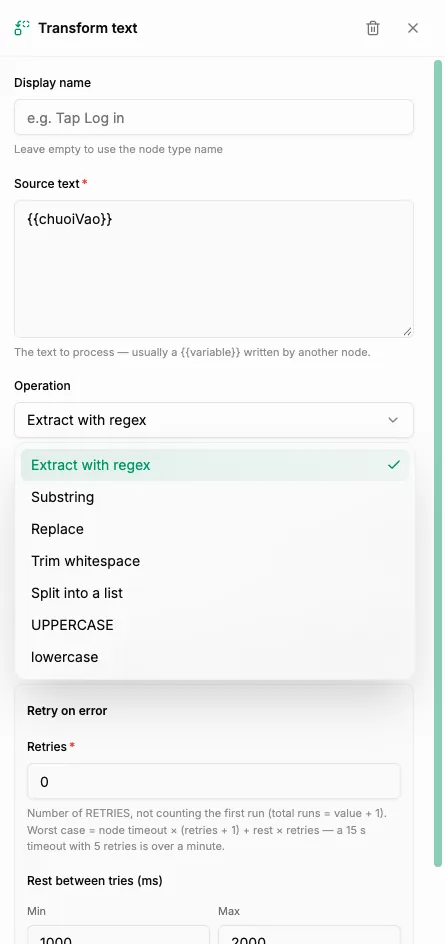
Reach for this after anything that reads text, because the raw text is rarely the piece you want. It takes a Source text — "The text to process — usually a {{variable}} written by another node." — and can:
- Pull a piece out with a search pattern (a regex: a short formula describing the shape of the text you are after).
(\d{6})means "six digits in a row", which is how you get the code out of a message. "Regex — the first capture group (…) is what gets stored. No match takes the Error branch." - Take a slice by position, counted from 0.
- Replace — "Replaces EVERY occurrence. Leave empty to delete the matches."
- Split into a list — "Splits the text into a list on this separator — the destination variable must be a list (string[])."
- Change upper or lower case.
Text that does not match is not an empty answer, it is a failure: the run leaves by the Error output instead of carrying on.
The phone's clipboard
Read clipboard
Use it when the app does the copying for you — a share link, a referral code. Whatever is on the phone's clipboard goes into a variable.
Write clipboard
Use it to avoid typing. Loading the clipboard lets the app paste a long string in one go instead of the flow tapping it out letter by letter: faster, and nothing gets mistyped. The box holds "What the device clipboard will hold; {{variableName}} works here".
Bring a value in from outside
HTTP request
Use it when the flow has to ask your own system something — which account to use next — or report back to it.
"The Android device calls an HTTP address" — the call leaves from the phone, not from our servers, so the far end sees whatever connection that phone is on. If that matters: Check which proxy a device is really using.
Fill in the method, the link, headers as JSON and a body if needed, and the variable for the answer. Two settings decide what counts as failure: "If the server does not answer in time, the Error branch runs", and "On, an error status takes the Error branch; off, it still takes Next".
Read mailbox
Use it for a code or a link that arrives by email. It signs in to a mailbox over IMAP and reads "the NEWEST mail matching the filter" — filter by subject or sender. Leave Unread mail only on, as it is by default: "off makes it easy to grab an old OTP". An extract pattern cuts the code out of the body: "Empty stores the whole body; a pattern stores the first captured group".
The box is labelled App password deliberately: most mail providers make you create a separate password for programs rather than the one you log in with.
Ask AI
Use it when a step needs judgement rather than a rule. You supply the provider, the model name spelled the provider's way ("Type the provider's own model name, e.g. gpt-4o-mini"), your API key and the prompt; the answer lands in a variable.
An answer comes back worded differently every time, so never branch on an exact sentence. Ask for one short thing, then trim it with Transform text. This is not the same as Generate a flow with AI, which writes a flow rather than running inside one.
Codes that expire
Generate 2FA code
Use it when a login asks for the six-digit code from an authenticator app. You give it the secret from the day 2FA was switched on — "The base32 string shown when 2FA was set up; variables are allowed. The code it produces rotates every 30 seconds" — and the current code goes into a variable.
Generate it immediately before typing it, not at the top of the flow. A code produced a minute earlier has already been replaced.
A 2FA secret is not something to leave sitting in a flow. A flow variable's starting value is stored with the flow and can surface in search. Pass the secret in as a session variable, or from a data set with the value marked secret — see Variables and flow data. The same applies to the mailbox app password above.
Summary
- Everything here writes into a flow variable you created first, on the Variables tab.
- Calculate does the arithmetic and Transform text does the cutting —
{{ }}by itself does neither. - A pattern that matches nothing takes the Error output; wire it, or the run stops there.
- HTTP request is dialled by the phone, so the far end sees the phone's connection.
- Secrets — 2FA keys, mailbox app passwords — go in session variables or secret data-set values, never in a flow variable.