Remote Control
Spoof the GPS location on your Cloud Phone
How to set a fake GPS location on your Cloud Phone from the viewer: the toggle, picking a point on the map, typing coordinates, and syncing devices.
4 min read
Spoof location lets you pin any GPS coordinate to your Cloud Phone so that apps reading location on the device see the spot you picked instead of where the phone physically sits. This page covers where to find the button, how to pick a point on the map, how to push the same location to several devices at once, and what to do when an app still reports the old position.
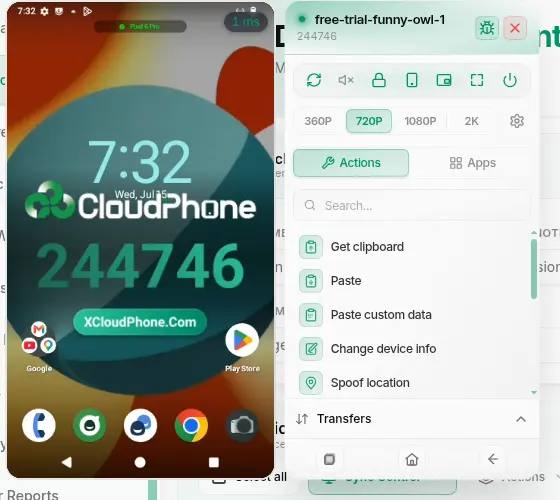
Where to find it
Open the viewer and look at the Actions list in the control panel. The Spoof location row sits directly under the Root row, which itself sits under Change device info. On the mobile viewer it is a tile in the Actions tab.
Rather than scrolling, type gps or location into the search box above the list.
Don't see the row? Nothing is broken. Spoof location only appears when your Cloud Phone supports it. Some older devices in the fleet don't, so the row is hidden completely rather than greyed out. Rent a different device and it will be there.
The Spoof location window
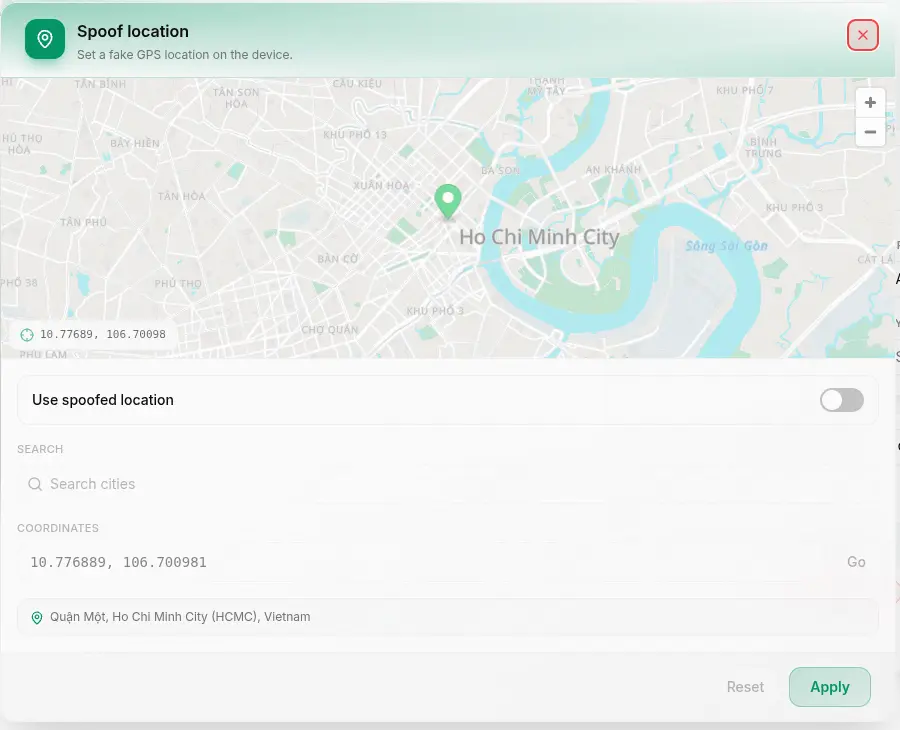
Click the row and the Spoof location window opens with the subtitle "Set a fake GPS location on the device."
At the top is the Use spoofed location switch. This switch gates everything else: while it is off, the whole editor below it (the map, the search box, the coordinate field) is locked. Turn it on first, then pick your spot.
The map only loads when you open this window, so the very first open can take a moment. It is quicker after that.
Picking a location
There are three ways to do it. Use whichever suits you, since all three drive the same pin.
Click the map. The green pin jumps to wherever you clicked.
Drag the pin. Grab the green pin and drag it to fine-tune the exact spot.
Type coordinates. Fill in the Coordinates field and hit Go.
The pin and the Coordinates field stay in sync in both directions: move one and the other follows. While the address behind the pin is being looked up, you'll see "Looking up address…".
The Coordinates field expects lat, lng. Get the format wrong and it says "Enter a valid "lat, lng" (e.g. 10.7769, 106.7009)" while the pin stays put.
The city search box
The Search cities box lets you type a city name instead of memorising coordinates. Pick a result and the map flies there.
The search box only appears when the place-lookup service is switched on for the system. If you don't see it, the map and the Coordinates field still work as normal.
Applying to several devices at once
If the Cloud Phone you have open belongs to a sync group of two or more devices, the window shows an extra Apply to all synced devices checkbox with the hint "The same location is set on every synced device." Tick it and the identical coordinate lands on every device in the group. Your choice is remembered for next time.
A standalone device that isn't synced with anything won't show this checkbox at all.
Reset and Apply
The two buttons at the bottom:
| Button | What it does |
|---|---|
| Reset | Drops your unsaved edits and snaps back to what the device is actually running |
| Apply | Sends the location to the device. The button reads "Applying…" while it waits |
On success the window closes itself and you get the toast "Location applied". If you switched the toggle off and then applied, the toast reads "Mock location turned off" instead. If the device doesn't answer within about 8 seconds you get "Failed to apply location" and nothing changes, so just try again.
How to tell it's on
While a spoofed location is live, the Spoof location row glows green and a green arc runs around its icon. On mobile the arc runs around the whole tile border. One glance tells you the device is spoofing, no need to open the window.
Right after you connect, the system is still asking the device where it stands, so the row shows "Syncing location…" with a spinner and can't be clicked yet. Give it a few seconds.
Map, theme and language
The map switches between a light and a dark basemap to match the theme you're using, and its place labels follow the page language. Change either one and the map updates on the spot.
If the map can't load, the frame shows "Map failed to load." with a Retry button. It's usually just a network hiccup at load time, and Retry clears it.
Troubleshooting
Details
The app still shows the old location
Most apps cache the last location they read and won't ask again straight away. Close the app fully and reopen it, or use Force stop from the Apps tab, so it picks up the new position. Map apps usually catch up within seconds.
The Spoof location row isn't there
The Cloud Phone you rented doesn't support the feature, typically an older device. The row is hidden rather than disabled, so searching the list won't surface it either. Rent another device to use it.
Apply returns "Failed to apply location"
The device didn't confirm within about 8 seconds. Check the viewer is still connected (the ms figure over the video), then apply again.
There's no city search box
The place-lookup service isn't enabled on the system. Use the Coordinates field instead: copy the number pair out of any map app and hit Go.