Automation
Blocks that read the screen
What an element is, why a flow waits instead of tapping, and how Wait for element, Read text on screen, Count elements and Screenshot work together.
5 min read
A flow that taps without looking works once — on the phone you built it on, on the day you built it. Four nodes let a flow look before it acts, and they are what separates a flow that survives contact with a real device from one that does not. Two of the four are in the ELEMENTS group of the node library; the other two are not, and each says so below.
What "element" means
The app uses one word for it, and the hint in the editor is as plain as it gets: "An element is one thing on the screen (a button, an input, a line of text)."
That is the whole idea. The Log in button is an element. The password box is an element. The line that says "3 new messages" is an element. When you tell a flow to tap something, you are either giving it a point on the glass — which moves — or describing an element, which the phone goes and finds.
Describing one is a topic of its own: see Match an element on screen, and Find elements with the UI Inspector for how to see what is actually on a screen in the first place.
You rarely need more than one condition to describe an element. The editor says so itself: "One condition is enough in most cases. Add groups only when the screen has several look-alike elements." Start simple and add only when the phone picks the wrong thing.
Why you wait instead of tapping straight away
Apps do not take the same amount of time twice. The same login screen appears in half a second on a good connection and four seconds on a bad one. A flow that taps at a fixed moment is betting that today looks like the day you tested.
Waiting for the element removes the bet. The flow carries on the instant the thing is there, and no sooner — which is both faster on good days and reliable on bad ones. This is the single biggest difference between a flow that works once and a flow you can leave running.
Wait for element — and the check that isn't there
Wait for element waits until the element you described appears, then carries on. Set the Element you are waiting for and the Element timeout (ms).
New users go looking for a node called "does this element exist?" and do not find one. This is it. The node's own description spells out the trick: "Doubles as a yes/no check: use a short timeout and wire the Error branch as the "not found" path."
Add Wait for element and describe the thing you are checking for — a "Verify your email" heading, say.
Set a short timeout. You are asking a question, not waiting for a slow screen.
Wire the normal output to "it was there" and the Error output to "it was not".
The Error output is not optional here: "Not found within the wait → the Error branch runs; with Error unwired the flow stops as a failure."
So an unwired Error turns a perfectly ordinary "the popup did not appear this time" into a failed run. If you are using this node as a check, you must wire Error somewhere.
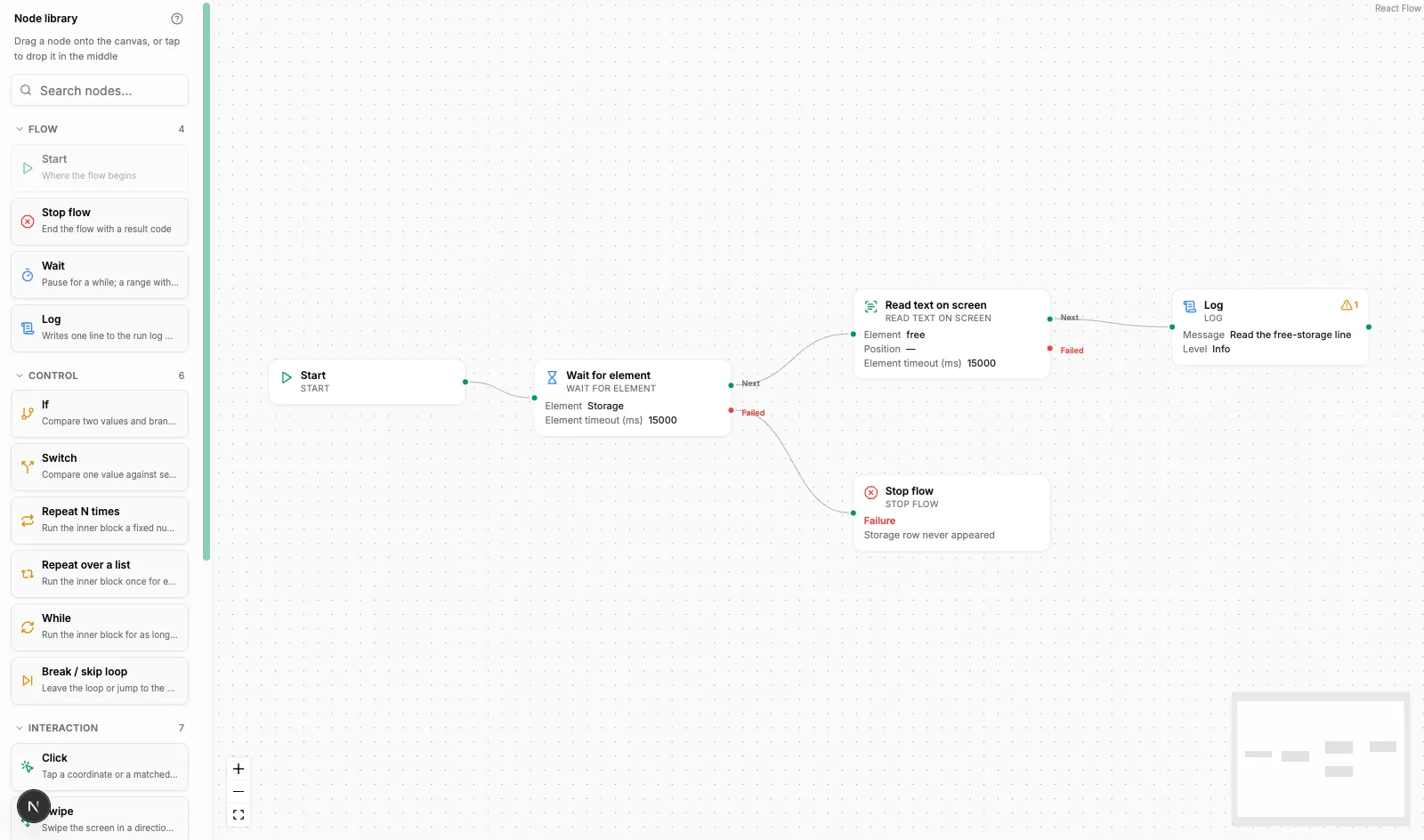
Read text on screen
Read text on screen — filed under VARIABLES in the library, because its whole job is to fill one — copies what an element says into a variable, which is how a flow reacts to content rather than to layout: read the balance, read the error message, read the code that arrived.
Pick the element, then pick a variable under Store into variable. Only variables the flow owns can be chosen: "Only flow-owned variables of the matching type can be picked. Add new ones in the Variables panel." If the list is empty, you have not declared a variable yet — see Variables and flow data.
Then there is the field that solves the most baffling problem in this whole article:
The text comes back empty and the element is clearly right there.
Read attribute explains it: "Many apps only set the content-description, not the text — pick “Description” when text comes back empty."
Plenty of buttons, especially icon-only ones, carry no visible text at all — what they have is a description meant for screen readers. Switch the attribute and the value appears.
Once the text is in a variable you can branch on it with If — remembering to set Compare as to Number if it is a number, as covered in Blocks that steer the flow.
Count elements
Count elements counts everything matching your description and stores the number. Use it to ask questions a single element cannot answer:
- Is the list empty? Count is 0.
- Did the page load? Count of rows is more than 0.
- How many rounds should the loop run? Count first, then feed it into Repeat N times.
Because it returns a number rather than a branch, follow it with If or Switch to decide what the number means.
Counting also tells you when a description is too loose. If you expected one Log in button and the count says nine, your condition is matching far more than you meant — and any node acting on a single element has a Position field for exactly that situation: "If several elements match, pick which one — counting from 0. Empty means the first one."
Screenshot
Screenshot, which the library keeps in the DEVICE group, captures the screen under a name of your choosing, and it is the evidence you wish you had when a run went wrong overnight.
Image name is more precise than it looks: "Saved on the device under exactly this file name — a later node or an operator can pick it up by name. Same name overwrites; embed {{variables}} to tell rounds apart."
That last clause matters inside a loop. A fixed name means every round overwrites the last, and you end up with a picture of round twenty only. Put a variable in the name — check_{{account}} or round_{{i}} — and you get one per round.
The Stop flow node can also take a screenshot as it ends, and both land in the same place. Together they give you a picture of where a run got to and a picture of where it stopped.
Summary
- An element is "one thing on the screen (a button, an input, a line of text)" — describe it rather than pointing at a coordinate, and start with one condition.
- Wait for element is also the missing "does it exist?" node: short timeout, Error branch wired as the "not found" path. Leaving Error unwired turns a normal absence into a failed run.
- Read text on screen fills a variable; when the text comes back empty, switch Read attribute to Description.
- Count elements answers "how many", including the useful answer 0 — and a surprisingly big number means your description is too loose.
- Put a
{{variable}}in the Image name of Screenshot, or every round of a loop overwrites the previous picture.