Remote Control
Export a file from the device
Download a file from your Cloud Phone to your computer: browse its storage, pick a file, press Download, and how Export differs from Import.
4 min read
Export file pulls a file from your Cloud Phone's storage down to your computer, through your browser's normal download. Use it for what the phone made or fetched — a saved photo, a recording, a document an app exported. It is the opposite direction of Import file, which sends files to the phone.
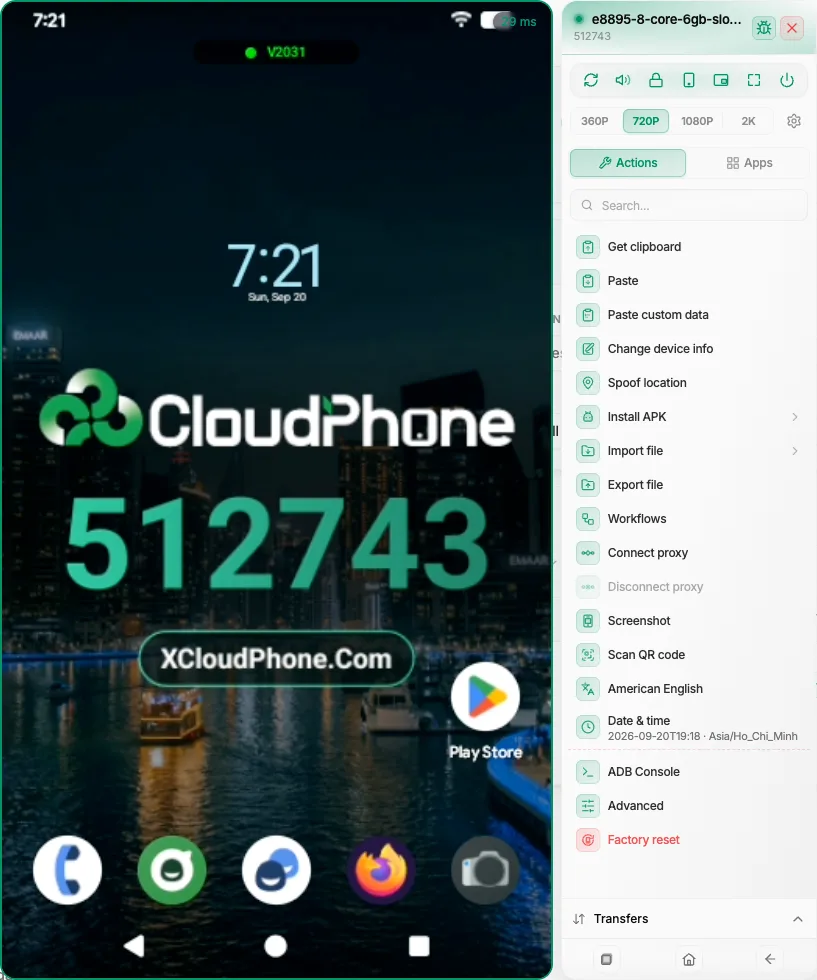
Download a file from the device
Open the dialog — In the Actions list, click Export file (it sits right after Import file; type export in the search box to find it fast).
Browse to the file — The dialog works like the Files app on a phone. It starts at the root, shown as Internal storage; folders come first, and you tap a folder to go into it. A path line across the top shows where you are (click any part to jump back), and the .. row goes up one level. The box "Search files on the phone…" filters the current folder, and an empty folder says "This folder is empty."
Pick one file — Tap a file (folders cannot be picked). Its name appears in the bar at the bottom.
Press Download — A toast tells you the file is being pulled, and the bar at the bottom shows the progress while it travels.
Wait for the confirmation — When the file has arrived, a toast says it is ready, with the file's name, and your browser saves it under its original name.
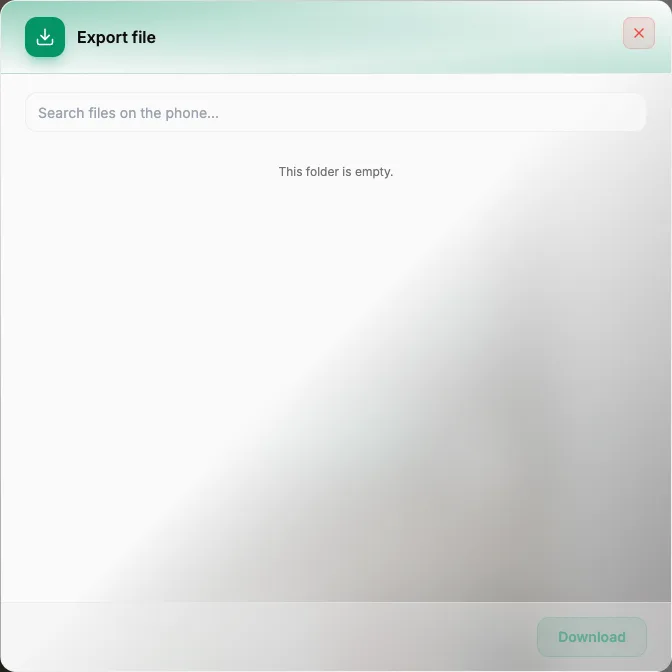
On a brand-new device the storage is almost empty, so the dialog opens on "This folder is empty." and the Download button stays disabled until you pick a file. Export shows what is on the phone — files an app or the phone's browser has saved, or files you sent with Import file — so put something there first, then export it.
Where the file goes
The file lands wherever your browser saves downloads, with the same name it had on the phone. It also appears in the Transfers tab next to your screenshots.
The Transfers tab is temporary. It keeps only the 10 most recent items and loses everything when you reload the page. If a file matters, make sure your browser has actually saved it before you close or refresh the viewer.
The dialog stays open after a download, so you can pick another file. The Download button is disabled while a file is still being pulled, so files go one at a time, and folders cannot be downloaded — only single files.
Export and Import are different
| Export file | Import file | |
|---|---|---|
| Direction | Device → your computer | Your computer or Files Manager → device |
| Where it goes | Your browser's downloads | The device's storage |
| Sources | Anything you can browse on the device | Import local file or Import cloud file |
| Progress shows in | Toasts and the Transfers tab | The Transfers tab |
Export does not save the file into Files Manager; it goes straight to your computer. To move a file between devices, export it to your computer, then import it on the other one. To put an APK on the phone, use Install APK instead — see Install APKs on Your Cloud Phone.
Plan and sharing
Export file is not tied to your plan: it works whichever plan the phone is on. The tools that are tied to the plan are listed in What your plan locks in the viewer.
If something looks wrong
The file never arrived
Keep the viewer connected until the toast confirming the file is ready appears. If the device dropped offline meanwhile, wait for it to reconnect and press Download again. For connection problems, see Troubleshoot viewer connection.
I cannot find the file
The search box inside the dialog filters the folder you are in, so if you are not sure where the file is, go back up to Internal storage and browse from there.
The Transfers tab is empty
It clears on every page reload and keeps only the latest 10 items. The file itself is not lost if your browser already saved it — check your browser's downloads.
Summary
- Export file copies one file from the device to your computer; it is the opposite of Import file.
- Browse from Internal storage, pick a file, press Download, and wait for the confirmation that the file is ready.
- The file keeps its original name and also shows in the temporary Transfers tab.
- Files go one at a time, and Export is not locked by your plan.