Rental
Rent a device with a prepaid code
Redeem a prepaid rental code instead of paying from your wallet: where to enter it, what it checks, and why a code gets rejected.
4 min read
A rental code is a rental that someone has already paid for. A seller buys codes in bulk and resells them; when you enter one, you get the package, the number of hours and the number of devices it was bought for — and your wallet is not charged. This page shows where to enter a code, what you see before you confirm, and why a code gets rejected.

Code or voucher?
The two get mixed up all the time, and they are not interchangeable:
| Where you enter it | What it does | |
|---|---|---|
| Rental code | Rental Store → "Have a rental code?" | Pays for a whole rental. The package, hours and device count are fixed by the code. |
| Voucher | The Voucher field in the normal rent dialog | Takes a discount off a rental you pay for yourself. |
Where to enter a code
- Desktop: the Rental Store shows a banner near the top — "Have a rental code?" — with an Enter code button.
- Mobile: tap the round ticket-icon button next to the filter button. Its label is Rent with code.
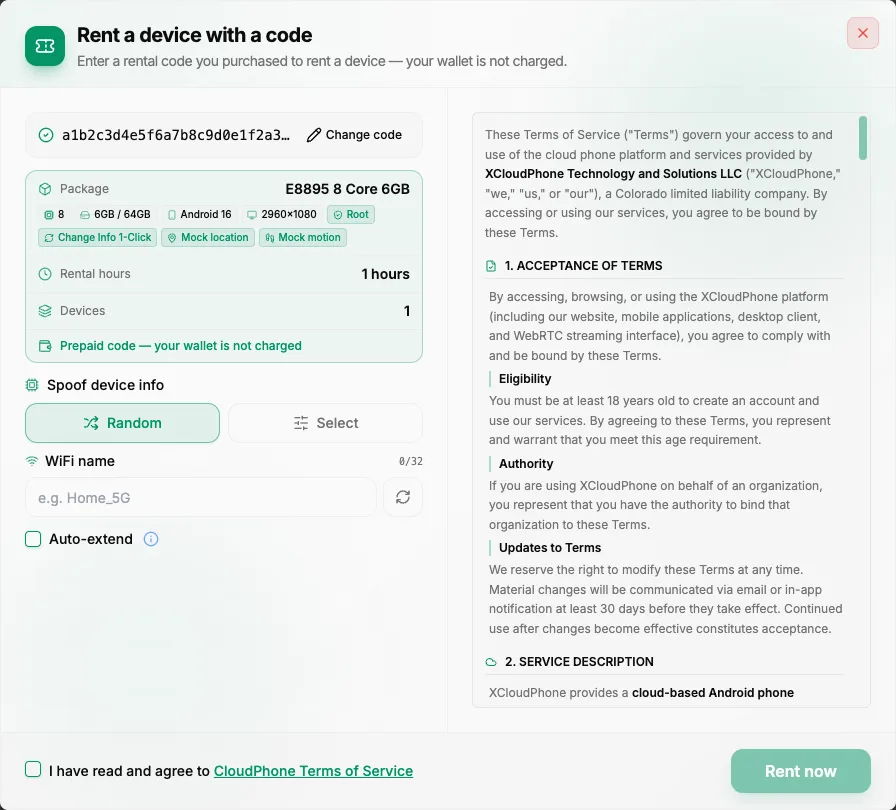
Both open the same dialog, "Rent a device with a code".
Redeem it, step by step
Enter the code — Paste it into "Enter rental code". Spaces are removed automatically. A code is 8–64 characters long, as the hint under the box says: "Code is 8–64 characters long". Anything outside that range is refused with a length error.
Press Check — This looks the code up without using it. The dialog now shows the Package with its spec and feature chips, the Rental hours and the number of Devices, plus "Prepaid code — your wallet is not charged". Typed the wrong code? Use Change code.
Set the options — Two rows appear only when the package supports them: Spoof device info (with WiFi name) needs a package that can change device info, and Auto-extend needs a package that allows extension. See Choose your device info when renting.
Accept the terms — Tick "I have read and agree to CloudPhone Terms of Service". On desktop the box unlocks only after you scroll to the end of the terms.
Press Rent now — On success you see "Device rental successful" and a shortcut to your devices, which also appear in Device Management.
The code pays for the rental itself, not for auto-extend. Auto-extend is off by default in this dialog. If you tick it, every later extension is charged to your wallet balance or promo hours as usual, and the dialog shows the estimate per extension. See Extend a rental.
What it does to your wallet
Nothing is taken from it for the rental itself: your balance is the same before and after. In Transaction History the rental appears as type Rental with a Code tag, an amount of zero and the note "Rented with a code (free)". Open the row's device details and the discount column is labelled Paid by Code.
Why a code gets rejected
Code not found
The code does not exist as typed. Re-check every character, watch for look-alike characters, and make sure nothing extra came along when you copied it.
This code has already been used or refunded
A code works once. If you or someone you shared it with already redeemed it, it is gone. If the seller refunded it, it is dead as well. Ask the seller for a new one.
This code belongs to a different currency than your wallet
Every code carries the currency it was issued in, and your wallet has one currency too — VND or USD. They must match. You cannot switch your wallet yourself, so ask the seller for a code in your wallet's currency. How the wallet currency is decided: Wallet currency: VND or USD.
Something went wrong — the code may be processing, please try again
The request did not finish cleanly, and the code may already have gone through. Open Device Management before you retry: if the devices are there, the rental worked, and pressing again would only tell you the code was already used.
The dialog can also refuse the rental for ordinary stock reasons, such as "Not enough available devices". Try again a little later.
Keep the code private until you have redeemed it. Whoever enters a valid code first gets the rental.
Summary
- A rental code is a prepaid rental — package, hours and devices are fixed, and your wallet is not charged.
- Enter it from the Rental Store banner (desktop) or the Rent with code button (mobile); codes are 8–64 characters.
- Press Check to see what the code contains before you spend it.
- If it is rejected, the message tells you why: not found, already used or refunded, or a currency that does not match your wallet.