Remote Control
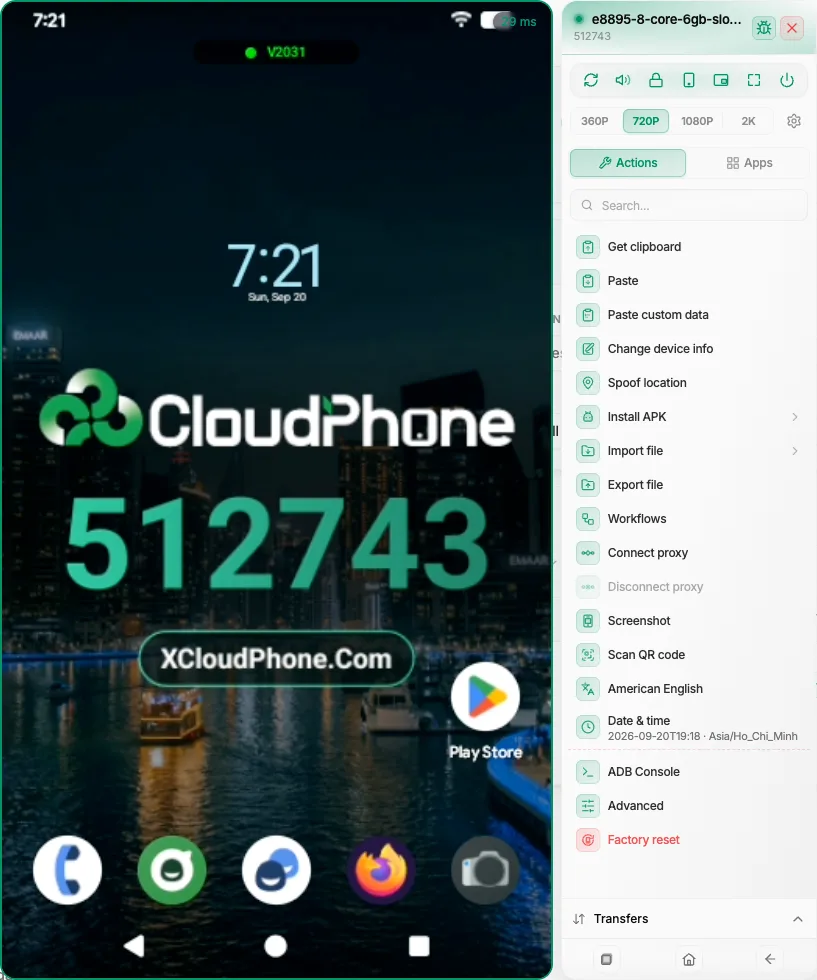
Scan a QR code on the device screen
Let the viewer read a QR code showing on your Cloud Phone: what the result toast offers, and why a link opens on the device or in your browser.
4 min read
Many sign-in and offer pages show a QR code that expects you to scan it with a phone. Your Cloud Phone is the phone, but you cannot hold another device up to its screen. Scan QR code reads the code that is showing on the phone's screen and hands you the result, so you can open the link or copy it.
How to scan
Put the code on screen — Open the page or app that shows the QR code on the Cloud Phone and leave it visible.
Click Scan QR code — It is in the Actions list, right under Screenshot. Type qr in the search box to jump to it.
Read the toast — The answer arrives as a toast, not a dialog. A result with a link stays on screen until you dismiss it, so you can read the address before you follow it.
What the result looks like
The result comes back as a notification (a toast), not a dialog. For a web link it carries buttons to open the link on the device or in your browser, and to copy it. The messages read along these lines:
| Message | What it means |
|---|---|
| A brief scanning message | Still working. It only appears when the scan takes a moment. |
| QR code read. Link found: | A web link, with an open button and Copy. |
| QR code read: | Something that is not a web link — plain text, a Wi-Fi setup code, a contact card. Only Copy is offered. |
| No QR code found on the screen. | Nothing readable. This one disappears by itself after a few seconds. |
| Could not capture the screen to scan. Try again in a moment. | The viewer could not get a usable picture of the screen. |
Open on the device or in your browser
A link result gives you one open button plus Copy — never both open buttons at once:
- Open on the device sends the link to the Cloud Phone, because a code that says "scan with your phone" means the link belongs on the phone, not in a tab on your computer. You then get a confirmation telling you to check the phone's screen. The viewer cannot see whether the phone opened it, so look at the screen.
- Open in my browser opens a new tab on your own computer. If the browser blocks it, the toast tells you to copy the link and open it yourself.
You get Open in my browser when the device cannot take the command: the app on the device is too old to open links on request, the device cannot be reached right now, or the session does not allow control. If you press Open on the device and it cannot go through, the toast says the link could not be sent to the device.
Copy puts the untouched text of the code on your clipboard and confirms it.
Long links are shortened on screen, but the site name always stays in full, and hovering shows the whole value. Copy always gives you the complete original text.
Only web links get an open button
A QR code is drawn by whatever app is running on the phone, so the viewer treats its contents as untrusted. It offers an open button only for ordinary http and https links. Everything else — other link types, Wi-Fi configs, contact cards, plain text, and even a web link with a name@ in front of the site name — is shown as text you can copy but never as a link the viewer will follow.
When it finds nothing
- The video is paused or frozen. The viewer refuses to read a stale picture, because a code that was on screen a while ago may already have expired. It tries a fresh screenshot from the device instead; if that is not possible you get Could not capture the screen to scan. Try again in a moment. Press Refresh on the toolbar and scan again.
- The code is small or dense. At the lowest resolution the phone draws very little detail. Raise the resolution with the chips on the toolbar and scan again.
- Several codes are on screen. Only the first one the viewer finds is shown. Leave a single code visible.
Scans run one at a time: while one is working, the row shows a spinner and cannot be pressed again. The screenshot the viewer sometimes takes for itself does not appear in the Transfers tab.
Login codes often expire quickly. Scan when the page is ready, and open the link right away.
Summary
- Scan QR code reads the code from the phone's screen and answers with a toast, not a dialog.
- A web link offers Open on the device (or Open in my browser when the device cannot take it) plus Copy; anything else is copy-only.
- If it finds nothing, check that the video is live, raise the resolution, and keep a single code on screen.
- Only the first code found is shown, and only plain http and https links can be opened.