Remote Control
Change the device language, date and time
Change the language, date, time and time zone your Cloud Phone reports, restore network time, and avoid the trap with Match clock to location.
3 min read
Two rows in the viewer's Actions list change what your Cloud Phone tells apps about itself: the language it uses, and the date, time and time zone it reports. They open separate dialogs but work the same way — pick a value, press Apply, press Restore to undo — so they share this page. Use them when an app formats dates, prices or menus by language, or when you want the clock to agree with a proxy or a GPS pin in another country.
The language row
The row does not carry the words "Device language". It shows the language the phone is using right now — for example American English — and that name changes when you change the language. When you have overridden it, the row lights up and adds the tag Overridden. Type language in the search box to find it.
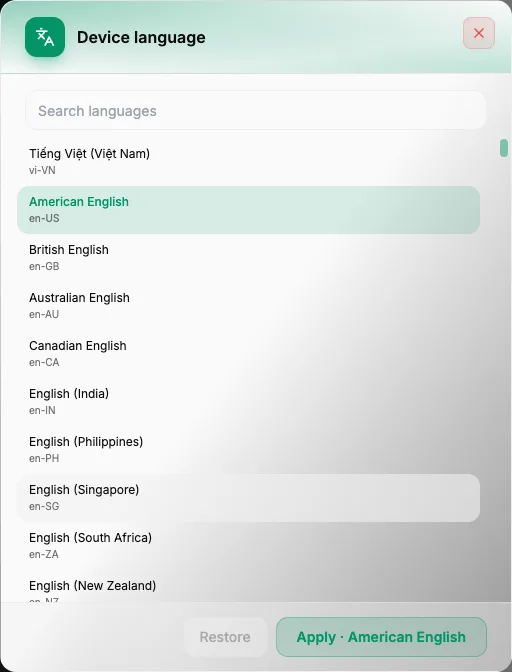
Open the dialog — Click the language row. The dialog is titled Device language.
Find a language — Type in Search languages or scroll. Each entry shows a name and a code, such as Tiếng Việt (Việt Nam) · vi-VN, American English · en-US or British English · en-GB.
Select and apply — Click a language, then press Apply. The dialog closes.
Restore removes your override. It is only enabled while the row says Overridden.
The Date & time row
This row is titled Date & time and shows the phone's current clock and zone underneath, like 2026-09-20T19:18 · Asia/Ho_Chi_Minh. It lights up once you have overridden it. Type time or clock in the search box to find it.
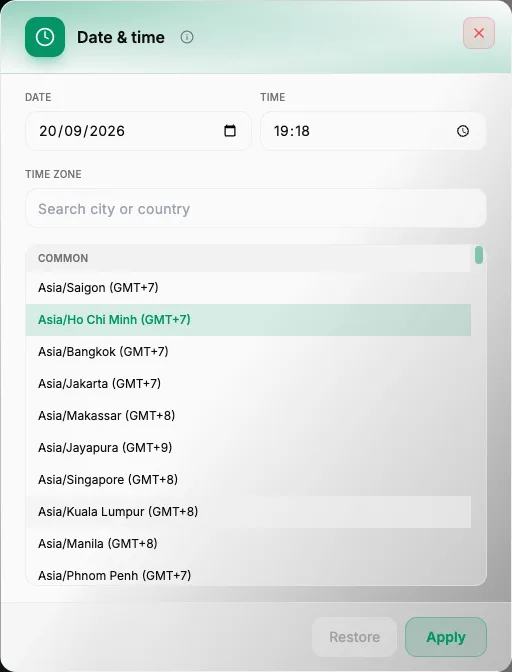
The (i) beside the dialog title explains: "Sets the clock and time zone the phone reports. Restore hands it back to network time."
Set the date and time — Fill in Date and Time. They are read in the time zone you choose below.
Choose a time zone — Search with Search city or country, or pick from the Common group, which lists ready-made choices such as Asia/Saigon (GMT+7), Asia/Bangkok (GMT+7), Asia/Tokyo (GMT+9), Europe/London (GMT+1) and America/New York (GMT-4).
Apply — Press Apply. The dialog closes.
Restore hands the clock back to network time, and it is only enabled while the row is lit up as overridden.
Apply to all synced devices
If this device sits in a Sync Control group of two or more, both dialogs show a checkbox Apply to all synced devices. Ticked, every device in the group gets the same language, or the same date, time and zone. A device on its own does not see the checkbox.
The Restore trap: Match clock to location
Restore gives you network time back, but it does not clear the time zone if Match clock to location is switched on in Spoof location (under Device clock). That switch sends the pin's time zone with every Apply, so the phone keeps the zone of the pin.
To put the real clock back completely: open Spoof location, switch Match clock to location off and press Apply — turning it off puts the real clock back — then use Restore in Date & time if the time is still off.
If an app still shows the old value
Some apps read the language and the clock only when they start. If an app that was already open still shows the old language or time, close it fully and open it again — Force stop in the Apps panel does that in one click.
Summary
- The language row shows the current language, and the tag Overridden once you change it; Date & time shows the current clock and zone.
- Pick a value and press Apply; press Restore to undo — it is only enabled while the row is overridden.
- Apply to all synced devices appears only for devices in a sync group.
- Restore does not clear the time zone while Match clock to location is on in Spoof location — switch that off first.