Sync Control
Sync Control batch actions, one by one
What each right-click Batch Action does in Sync Control, which ones restart or wipe phones, and what a partial failure looks like.
4 min read
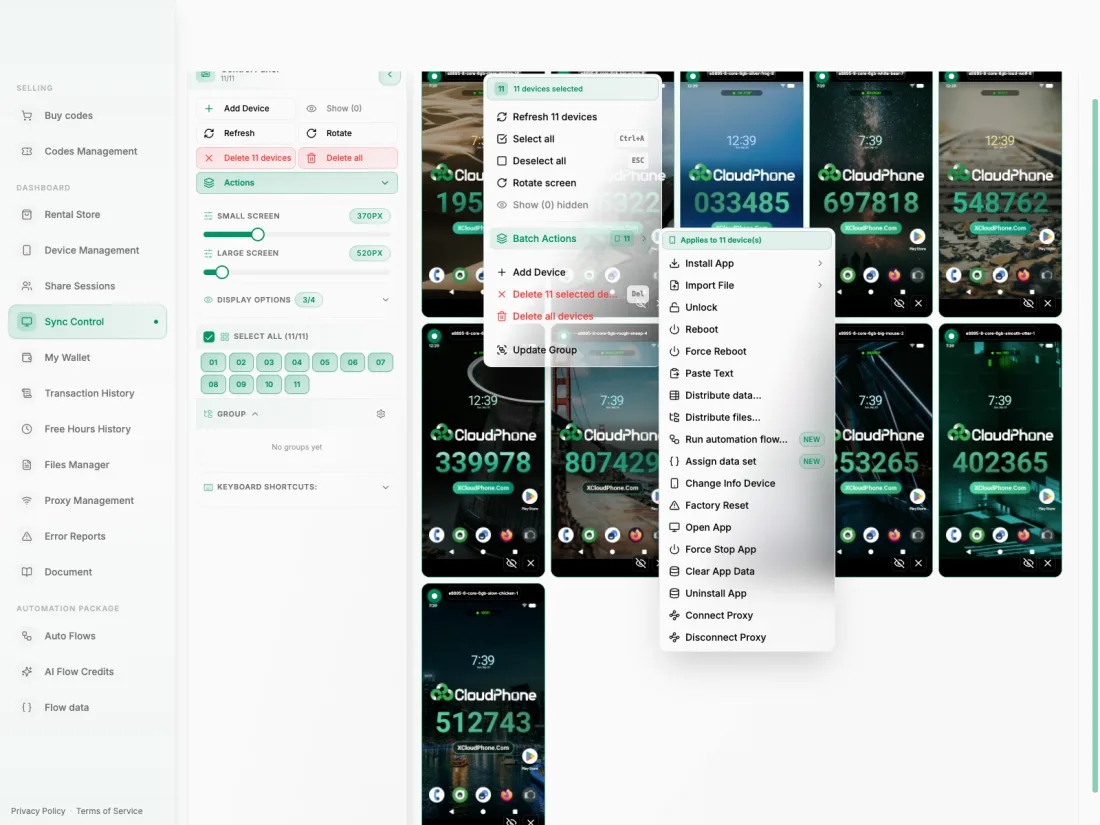
Right-click a device on the Sync Control grid and the menu tells you how many devices are selected. Everything under Batch Actions — 18 items — applies to all of them at once. This page is the map: what each item does, which ones you should think twice about, and which ones have a page of their own.
Open the menu
Devices are not on the grid automatically. Press Add Device, tick Select all in "Add devices to sync control", then press Add — the full walk-through is in How to use Sync Control. Select the devices you want, then right-click any tile. The menu starts with "11 devices selected", and Batch Actions repeats it: "Applies to 11 device(s)".
Outside the submenu
The main menu also holds Refresh 11 devices (restarts the selected tiles' video without rebooting the phones; the number follows your selection), Select all (Ctrl+A) and Deselect all (ESC), Rotate screen, Show (0) hidden, Add Device, Update Group, and Delete 11 selected devices / Delete all devices — delete removes devices from the grid, and the phones keep running.
The 18 Batch Actions
Apps and files
- Install App — From Cloud picks an APK from your Files Manager, From Local from your computer. From Local takes up to 5 files at a time. See Install APKs on Your Cloud Phone.
- Import File — the same two sources; the files are saved into the phones' storage.
- Open App, Force Stop App, Clear App Data, Uninstall App — each opens a list of the apps found on the connected devices. Tick one or more and confirm. If nothing is ticked you see "Please select at least one application".
Screen and power
- Unlock — unlocks the lock screen.
- Reboot — restarts through the connection you already have, so the device must be connected. It asks you to confirm and says the devices will reconnect automatically.
- Force Reboot — restarts through the server, for phones with connection trouble or offline ones: "Restart device remotely. Use when experiencing connection issues or device offline. If the problem persists, please contact admin." Each device's result is reported as Success, Invalid session or Failed. It matches the Reboot button on a row in Device Management.
Text and data
- Paste Text — the same text, pasted on every phone.
- Distribute data… — a different line for each phone: Distribute data to many devices.
- Distribute files… — a different lot of files for each phone: Distribute files to many devices.
Identity
- Change Info Device — every device gets its own new model, IMEI, serial number and Android ID, and restarts. Choose Random for all, or Pick model per device. Devices on a package that cannot change device info are skipped, and the dialog tells you how many. Background: Choose your device info when renting.
- Factory Reset — erases the phones.
Network
- Connect Proxy — opens a bulk dialog where you choose or type a proxy for each device. See Assign and connect a proxy to a device.
- Disconnect Proxy — drops the proxy on the selected devices.
Automation
- Run automation flow… and Assign data set carry a NEW tag and belong to the Automations section. Assign data set is greyed out when every selected device is a session shared with you: "Shared sessions can't be assigned a data set".
Before you press these
The Factory Reset confirmation ends with "All data will be erased. This action cannot be undone." Uninstall App removes the app, and Clear App Data wipes its data — logins included — on every selected phone. Change Info Device restarts the phones, and it warns: "Clear app data first — otherwise the app can still recognise the old device." Try an action on one or two devices first.
When some devices do not respond
For most actions the green confirmation counts the devices you selected. It does not prove that each phone acted: a phone that was still connecting can miss the command. The app may name a device it had to skip, but do not count on it: look at the grid after a large action.
For the ones that missed it: press Refresh, wait until the tile has reconnected, then run the action again on just those tiles. On a large grid the app lists come from connected devices only — see Sync Control with 17 or more devices.
Summary
- Select devices, right-click, open Batch Actions: 18 items, all applied to the whole selection.
- Paste Text sends one text to all; Distribute data… and Distribute files… give each phone its own share.
- Factory Reset, Uninstall App, Clear App Data and Change Info Device are the ones to try on a couple of devices first.
- A success message counts selected devices, not confirmed ones; check the grid and rerun on any phone that was still connecting.