Sync Control
Distribute data to many devices
Paste a list once and give each device its own line: split and match modes, and the click order that makes it work.
4 min read
Filling the same form on 20 devices is easy when every phone gets the same text. It is harder when each phone needs its own values — a different proxy, a different login. Distribute data solves that: you paste a list once, and each device receives its own line.
Devices are not on the grid by themselves: press Add Device, tick Select all, then press Add — see How to use Sync Control.
Open the panel
Select the devices you want to fill, right-click one of them, then choose Batch Actions → Distribute data… (one of the Batch Actions). The panel floats above the viewers and stays open while you work. If it covers a field you need, drag it aside, or Collapse it to a slim strip that keeps just the column buttons.
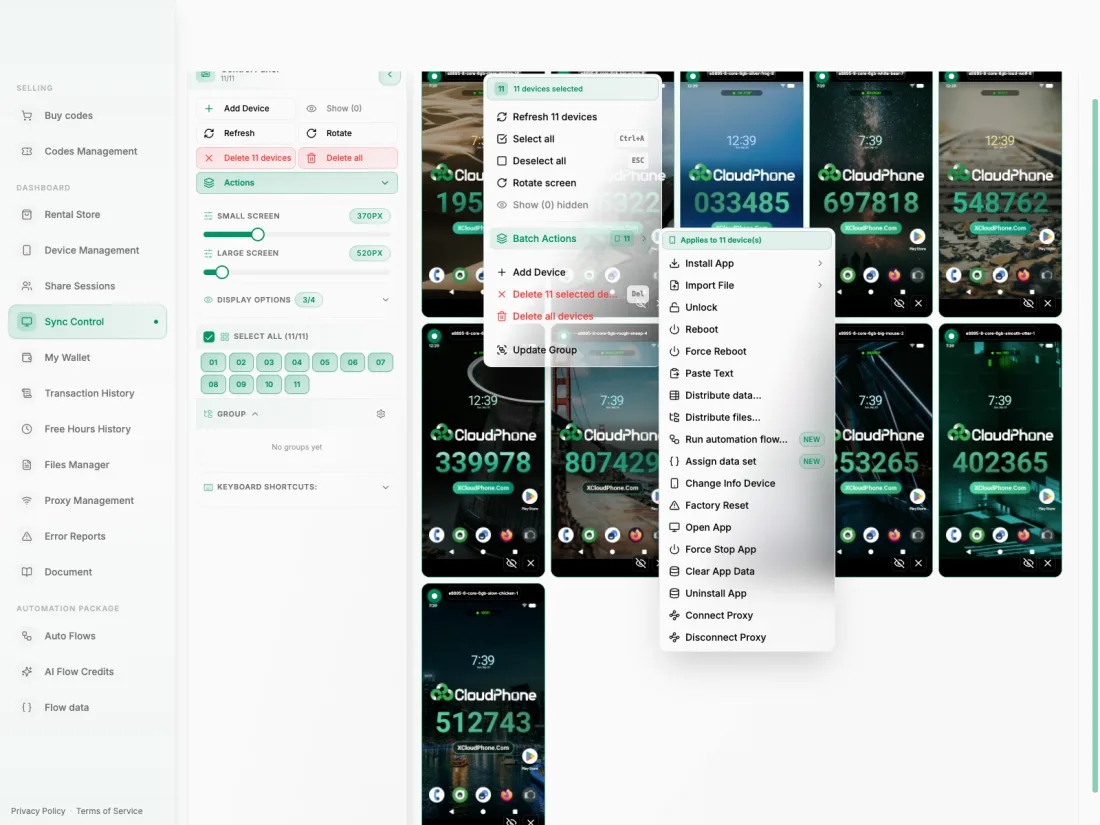
The panel keeps the list of devices from the moment you opened it, so one stray click on a tile cannot shrink a 40-device job. If your selection drifts, the panel tells you the selection changed and that it still uses the list from when it opened — press Use new list to follow the new selection.
1. Paste your data
Paste one line per device into the box, for example a proxy list: 1.2.3.4|8080|username|password. The Separator field (| by default) tells the panel where to cut each line, and the table below splits it into columns: Col 1 = IP · Col 2 = port · Col 3 = user · Col 4 = password.
Pick a separator that does not appear inside your values — a password containing it would be cut in two.
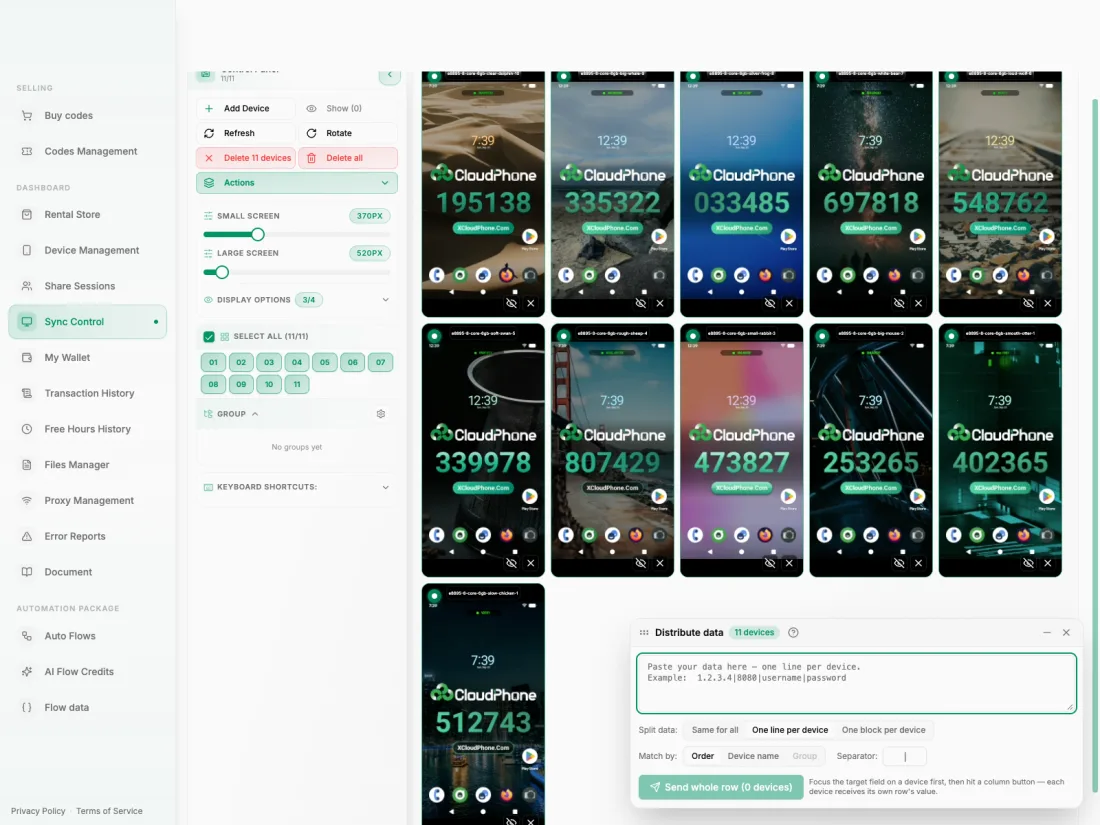
2. Choose how to split it
Split data decides what "one device's share" means:
| Option | What each device receives |
|---|---|
| Same for all | The whole text, identical on every device. A single button sends it to all of them. |
| One line per device | One line each, cut into columns by the separator. |
| One block per device | One block each. Blocks are separated by a blank line and are not cut into columns, so a multi-line message stays whole. |
3. Choose how lines find their device
Match by decides which device gets which line:
- Order — line 1 goes to the first selected device, line 2 to the second, and so on.
- Device name — the first field of each line is the device's name, exactly as its tile shows it:
phone1|user1|pass1. Capitals and extra spaces do not matter, but accents do: Máy and May are different names. - Group — the first field is a group name, and every selected device in that group gets that line. This is the only mode where one line reaches several devices. Group is greyed out when none of the selected devices belongs to a group.
When you match by name or group, a Fill in device names (or Fill in group names) button writes the name column for you. It never wipes what you pasted; it adds the names in front of your lines. Typing at the start of a line also offers name suggestions — click one or press Tab.
4. The click order that matters
The panel pastes into whichever field has focus on each phone. Its own hint says it: "Focus the target field on a device first, then hit a column button — each device receives its own row's value."
Click the field on a phone — On one phone's screen, click the field you want to fill, for example Server. With Sync Control, that click reaches every synced device, so each phone focuses its own copy of the field.
Press the column button — For example the Column 1 button (the number in brackets after its label is how many devices it will send to). Every phone pastes its own line's value into the focused field.
Move to the next field — Click the next field on the phone, then press Column 2. Repeat until the form is done. Ticks on the buttons show which columns you already sent.
Send whole row (its label ends with a device count) pastes a device's entire line (name removed) into a single field.
What the warnings mean
Check the summary line, which counts the rows, the devices and how many devices have data, and the table under your data, which lists every device next to the values it will receive. The panel also flags mistakes that would otherwise fail silently:
- A warning that extra rows will not be sent, because no device is left to receive them — you pasted more lines than there are devices.
- A warning that some names matched no device — a name is misspelled, or that device is not in the panel's list.
- A warning that repeated names use only the first row — the same name appears twice; the later lines are ignored.
Summary
- Select devices, right-click → Batch Actions → Distribute data…, and paste one line per device.
- Choose how to split the text and how lines find their device: by Order, Device name or Group.
- Always click the target field on the phone first, then press the matching column button, one field at a time.
- Read the warnings about extra rows and unmatched or repeated names before you send.