Rental
Swap to another device mid-rental
Move a running rental onto another free device of the same package: which plans allow it, the 2-swap limit, and what does not come with you.
4 min read
Swap device gives your running rental a different physical phone from the same package. The rental itself carries on — same session, same end time — but you are now working on another device. Treat it as a repair, not a routine: you get two swaps per rental, and your connection to the old phone is cut the moment you confirm.
Is it available for your rental?
Only if your package supports it. Swap device appears among a device row's action buttons only when the package allows swapping; if you do not see it, your package does not. As of September 2026, one of the four packages on sale supports it. How features are tied to packages: Which features each package includes.
How to swap
Open Device Management — Find the row of the rental you want to change. See Open the device viewer for the layout.
Click Swap device — It is the two-arrows icon (⇄) among the row's action buttons, between the automation-flow and Share buttons, with the tooltip "Swap device".
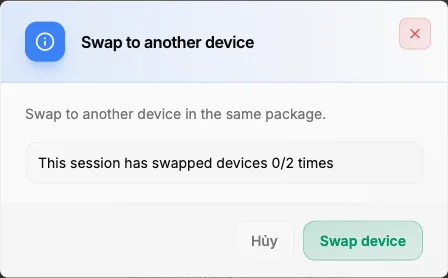
Read the dialog — "Swap to another device" says "Swap to another device in the same package." and shows how many swaps you have used: "This session has swapped devices 0/2 times". It does not list what you leave behind; the sections below do.
Confirm — Click Swap device. A message confirms that the device was swapped.
Open the new device — Use the Control device (eye) button on the same row, exactly as you would after a fresh rental.
What happens to the old device
Your connection to it is cut right away. If its viewer was open, the viewer closes by itself. If it was on the Sync Control grid, it is removed from the grid; the message reads "Closed the viewer and removed the old device from Sync Control". If you work with Sync Control, you may need to add the session back with Add Device.
What does not follow you
The new phone is a different device. Whatever lived on the old one — apps, signed-in accounts, files — stays behind. Save what you need before you swap, for example with Export file from the Viewer actions menu.
- Your proxy. It does not move to the new device, and the dialog does not warn you about it. Open the new device and connect the proxy again — see Assign and connect a proxy to a device. Until you do, traffic from the new phone does not go through your proxy.
- Settings you applied on the phone. Device info, mock location, language, time zone, WiFi name — all of these were set on the old phone. Set them again on the new one.
- Your open viewer. The old viewer is closed for you; the new device needs a fresh connection.
Limits and error messages
The limit is counted per rental session.
| Rule | What you see |
|---|---|
| 2 swaps per rental session | Once both are used, the dialog explains that no swaps are left and you cannot confirm. |
| Under 10 minutes left | "Less than 10 minutes left — swapping is no longer possible." |
| No free device in the package | "No free device in this package right now. Try again in a few minutes." |
| The package does not allow it | "This package does not allow swapping devices." |
| Session ended or busy | "The session is no longer active, or is locked by another operation." |
If you get the "no free device" message, nothing has changed: you stay on the phone you already had.
Swap device is not Change device info
The names sound alike, but they do opposite things:
| Swap device | Change device info | |
|---|---|---|
| What changes | The physical phone | The identity of the same phone — model, IMEI, serial number, Android ID |
| The phone restarts | No — you are moved to another one | Yes |
Change device info never gives you a different phone. It is covered in Choose your device info when renting.
Before spending a swap, try Reboot on the device row and give it a minute or two — the app itself suggests it for connection problems, and it does not use up one of your two swaps. See Troubleshoot viewer connection.
Summary
- Swap device moves a running rental onto another free phone of the same package; the session and its end time stay the same.
- The button exists only for packages that support it, works twice per rental session, and stops when less than 10 minutes remain.
- Your connection to the old phone is cut at once; your proxy, your data and your on-phone settings do not follow you.
- It is not Change device info, which keeps the phone and changes only its identity.