Proxies
Check which proxy your device is using
See which proxy your Cloud Phone is really using: what the Connect proxy row shows, how to catch a device still on the old proxy, and why a name may not appear.
4 min read
After you assign a proxy in My Devices and press Connect proxy, the row turns green. That only says a tunnel is up — not which proxy it goes through. On updated devices the row now names the proxy the device itself reports, so you can catch the case that used to be invisible: you assigned proxy B, but the phone is still running on the old proxy A.
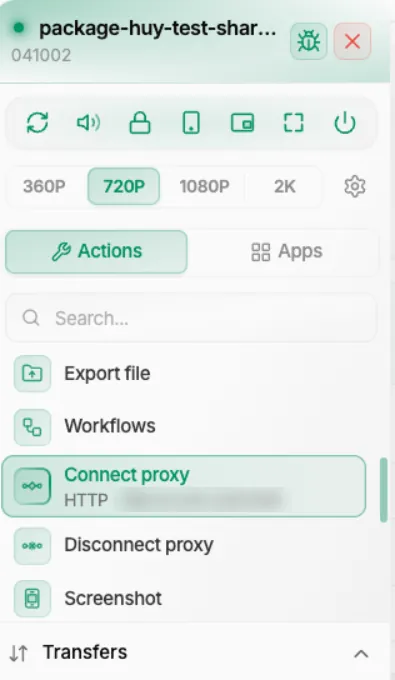
What the row tells you
Once the device reports its proxy, the Connect proxy row in the Actions list gets a second line: the proxy type in capitals, a dot, and the address — for example SOCKS5 · 203.0.113.24:9093. A separate Disconnect proxy row sits right below it.
For the full details, hold the pointer over the row for a moment. Your browser shows a small tooltip headed "Proxy in use on the device" that lists Type, Host, Port and — when the proxy has one — Username. It is the browser's own tooltip, so clicking the row does not open it, how it looks depends on your browser and system, and a touch screen cannot open it at all. That is why the mobile viewer puts the address and username right in the tile.
On the mobile viewer, the Proxy and Disconnect proxy tiles become one wide tile — and this one shows more than the desktop row, not less. The first line reads Proxy followed by the type; the second line gives the address and, after a dot, the username if the proxy has one, so there is no tooltip to hunt for. The Disconnect proxy button is a square inside the same tile, on the right. Tap the text to open the proxy picker and switch to another proxy. The Actions grid is paged, so if you do not see the tile on the first page, swipe sideways.
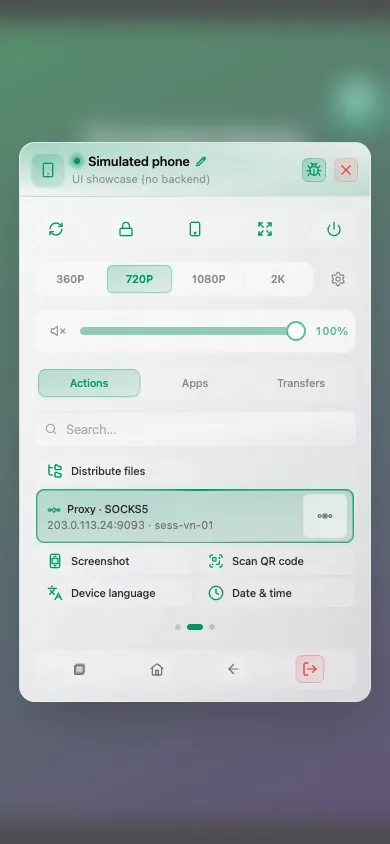
Catch "assigned B, running A"
Assign the proxy — In My Devices, assign the proxy to the session. The device card then shows a proxy badge.
Connect it — Open the viewer and press Connect proxy.
Wait for the name — The tunnel needs a few seconds to come up, and the name appears only once the device confirms it, so the row may look unchanged for a moment.
Compare — Check the address on the row (and the username, if your provider uses one — on desktop it is in the hover tooltip) against the proxy you assigned.
Act on a mismatch — If the row names a different proxy, the phone is still on the old one. Press Connect proxy again and check once more; if it still names the old proxy, press Disconnect proxy, connect again, and contact support if it keeps happening.
Residential proxy providers often give every session the same gateway host and port and tell sessions apart only by username. That is why the username is shown: if two of your proxies share a gateway, compare the username, not just the address.
Where the name comes from
The name comes from the device itself, not from what you assigned. That matters, because what you assigned in My Devices can differ from what the phone actually took — a connection that failed, for example. If someone connects or disconnects the proxy from another viewer open on the same device, this viewer updates too.
When you do not see a name
The row then looks exactly as it did before: one line, lit or not. The viewer does not show an error, so a missing name does not mean something is broken. The usual reasons:
- The device has not been updated. The name needs version 2.89 or newer of the XCloudPhone app on the device and version 1.9.0 or newer of its proxy app — both, for the name to be reliable. Devices on older versions keep the old behaviour. If a device never shows a name, ask support whether it has both updates.
- The tunnel is not up. Right after you press Connect proxy it takes a few seconds, and it is down again after you press Disconnect proxy.
- The proxy app did not answer.
The password is never shown. The device removes it before reporting, and the viewer discards a password even if one were sent. The username is shown, so keep that in mind if you share your screen or a session.
Summary
- On updated devices, Connect proxy names the proxy the device is using — type and address on the row, and the username in a hover tooltip on desktop or printed right on the tile on mobile.
- Compare it with the proxy you assigned in My Devices to catch a device that is still on the old one.
- No name means the row behaves as before: check that the device is updated and the tunnel is up.
- The password is never shown.