Automation
Blocks for apps and files
Open, close, clear, back up and uninstall apps from a flow, plus copying and reading files — what each node needs and what it costs you.
5 min read
Twelve nodes here: nine are about apps — opening, closing, wiping, checking — and three move files around on the phone. Almost all of them start with the same question — which app? — and the answer is never "Facebook".
The package name, first
An app is identified by its package name: its internal id, written like an upside-down web address. The box is labelled Package name and shows the shape it wants — "com.facebook.katana or {{packageName}}" — so a variable works there too, which is how one flow handles a different app per device.
For six of the most-used apps you never have to know it — Open app has a button for each, below. For anything else, the ADB Console on the device lists what is installed: Run a command from the ADB Console.
Opening and closing
Open app
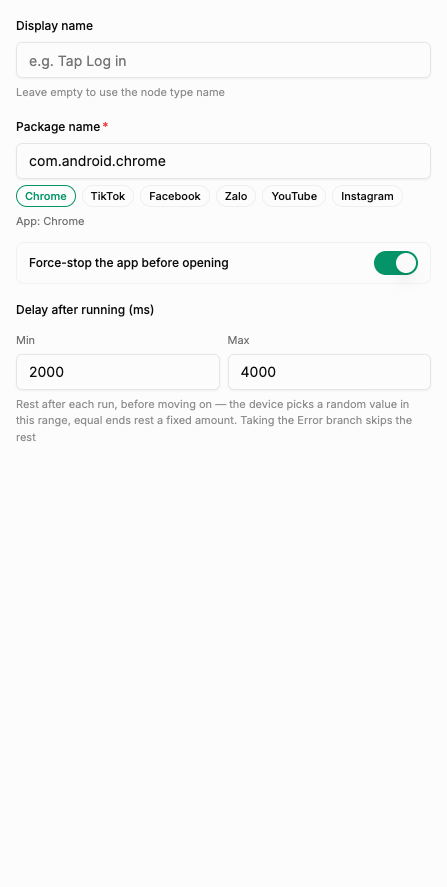
The usual first step of a flow, and its own line says what that means: "Launch an app by package name, force-stopping it first by default". The app starts at its first screen every single time, which is exactly what makes a flow repeatable. That is also why people are surprised their app "forgot" where it was. Turn Force-stop the app before opening off when you want it to carry on where it left off.
Under the box sits a row of buttons for the apps people open most — Chrome, TikTok, Facebook, Zalo, YouTube and Instagram. Press one and the package name is filled in for you, so for those six there is nothing to look up. A line underneath tells you which app is currently selected.
Close app
Closes a running app completely, rather than just moving it out of sight. Use it when the flow is finished with an app, and before anything that touches that app's data.
Close every app
"Stop every running app except the packages you list" — Keep these packages: "One package per line; these are left running". A good opening move for a flow that must not inherit whatever a previous run left on screen. It is a sweep, so anything that has to stay up belongs on the keep list.
Check app
A branching node, not a value: "Branch on whether an app is installed or currently running", leaving by true or false. Use it to install only when the app is missing, or to skip a login sequence when the app is already running.
Open link
Opens a URL or a deeplink. The link box takes "An http/https URL or a deeplink; {{variableName}} works here". Set Open with rather than leaving it empty: "Leave empty to let the device pick an app, which may show an Open with dialog. Choose an app to be sure where it opens". A flow that was not built to answer that dialog just sits on it.
Wiping and removing
Clear app data
Clear app data logs you out. It resets the app to freshly installed: "Everything this package stores will be deleted" — accounts, settings, downloads, the lot. The next run starts at the login screen and has to sign in from scratch, code and all.
That is exactly why you would use it, on purpose, when every run must start clean. It is never something to leave in a flow by accident.
Uninstall app
Removes the app from the device. Getting it back means installing it again, so keep the APK where you can reach it — Install an APK.
Snapshots of an app's data
Back up app data stores an app's data on the device under a name you choose, and Restore app data loads a named backup back into the app.
That pairing is worth more than it looks: back up an app the moment it is set up and logged in, and any run that leaves it in a mess costs you one restore instead of a fresh login.
Two things to hold on to:
- The name is the only handle you have. Restore finds the backup by exactly that name, so use names you will still recognise next week —
shop-logged-inbeatstest2. Reusing a name is not an error either: "Reusing a name overwrites the earlier backup". - The backup sits on the device, not in your account. Treat it as something that lives as long as that rented phone does, not as an archive.
Files on the phone
One thing to know before you go looking: in the node library these two sit in the Device group, not with the apps.
File action
Copy, move or delete a file, or create a directory. You give it a source path and, for copy and move, a destination. Everyday uses: put a downloaded file where an app expects to find it, or clear out last run's screenshots before the next one.
Deleting is immediate and there is no recycle bin. To get a file off the phone afterwards see Export a file from the device; to put one on in the first place, Upload files.
File exists?
Another branching node — "Branch on whether the path exists" — true or false. Use it to skip a download that already happened, or to check a file actually arrived before a later step tries to read it.
Read text file
In the library this one is filed with the Variables group, since what it really does is fill a variable. It reads a file on the device — a list of accounts, a result written by another app, anything in plain text. Pair it with Transform text to cut out the line you want: Blocks that store and reshape data.
It is for text. A photo or an APK read this way gives you nothing you can use.
Summary
- Everything app-shaped needs a package name (
com.facebook.katana), and a{{variable}}works in that box. - Open app force-stops first by default, so the app starts fresh every run.
- Check app and File exists? are branches — true or false — not values.
- Clear app data logs the account out; Uninstall app means having the APK again.
- Back up and restore are matched by the name you type, and the backup lives on the device.