Automation
Blocks that change the device
Toggle connections, read and change device info, run an ADB command, factory reset — the five flow nodes that act on the phone itself.
5 min read
Every other node in the library acts on an app. These five act on the phone. That is the whole difference, and it is why this page is mostly warnings: an app node affects one app, a device node reaches everything on the device, and one of them wipes the phone for good.
They live in the Device group of the node library.
Toggle connection
Controls wifi, mobile data, airplane mode and bluetooth. You pick the connection and the state, and one state is worth knowing about: "“Flip” inverts whatever the device is currently on", which saves you checking first.
Use it when the app you are driving behaves differently offline, or when a connection needs re-establishing.
This switches the connection for the whole phone, and the phone needs one. A run reports back over that connection, and so does the viewer you watch it in. Turn something off and you must turn it back on in the same flow — never let a flow end with the device offline.
After switching a connection back on, do not guess with a fixed wait. Connecting takes as long as it takes: use Wait for network, in the same Device group, so the flow moves on when the phone is really back — see Node reference.
Read device info
Copies one system property into a variable. The field wants the property's exact name: "A system property name, e.g. ro.product.model".
Use it to record what a device actually is — into a log line, or a report you send with HTTP request — or to confirm a change took effect. This is the technical end of the library: nothing guesses the name for you, and a name you invented returns nothing useful. The ADB Console is the easier place to look one up by hand before you hard-wire it into a flow.
Change device info
Changes the four things that identify the phone: IMEI, Android ID, Serial number and Device model.
This is a change at the level of the phone, not the app. Every app on the device sees the new identity — including apps you are already signed in to, which may sign you out, ask you to verify again, or treat the phone as one they have never seen.
Do it at the very start, before anything is installed or logged in. Changing identity under a set-up account is how a good account ends up locked out.
For what identity means on a rented phone in the first place, see Device identity.
ADB command
Runs a shell command on the device. The command box takes exactly what its label says: "What follows adb shell; {{variableName}} works here". The output can be kept — "Optional — the command’s stdout is stored in this variable. Leave empty to discard the output." — and there is a time limit: "If the command runs past this, the device kills it and the Failed branch runs. 0 = no time limit".
If you do not already write shell commands, this is the node to avoid. Nothing here checks what the command means. The device runs it, and a wrong one fails silently or does something you did not intend.
Almost everything people reach for it can be done by a node built for the job — on this page, or in Blocks for apps and files. To run something by hand instead, the ADB Console gives you a catalogue of ready commands with named boxes to fill in, rather than an empty field.
Two practical points. The node needs a rental package that includes ADB — the package card spells it out: "Run vetted ADB commands on the device, and the ADB node in auto-flows." Check the chips before renting, in Browse and pick a device package. And 0 = no time limit is not free: a command that never returns holds the run open until the whole run is cut off at 30 minutes and marked Failed, reason TIMEOUT. Give it a real limit.
Factory reset
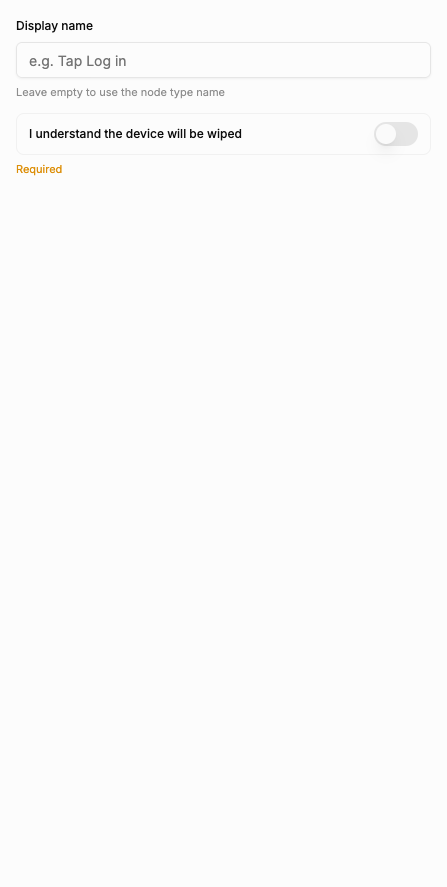
Factory reset wipes the phone, and nothing runs after this node. The description says both parts outright: "Wipe the device. Nothing runs after this node".
- Everything goes — apps, accounts, files, settings, and any backup made by Back up app data, because those sit on the device too.
- There is no undo, and nobody is asked twice: the flow reaches this node and the phone is wiped.
- Nothing can be wired after it. On the canvas this node has no outputs at all — no Next, no Error — so there is physically nowhere to attach a next step. Stop flow is built the same way, and the difference between the two is the whole point: Stop flow ends the run, this one wipes the phone. A tidy-up step, a log line, a report: nowhere to put them. Put them before.
- In a batch, it hits every device you selected. Read Run a flow on many devices before a flow containing this node goes anywhere near a selection.
The properties panel has two rows and no more: Display name, and a switch reading "I understand the device will be wiped". The switch is off when you drop the node in, and leaving it off is flagged the way any mandatory field left blank is flagged, with "Required" — and errors are what block the flow from saving. That is the only guard there is: "The node only runs once this is ticked — it guards against a stray click". You turn it on while building, which is the point — it catches a slip in the editor, and it does nothing about a flow that reaches the node for a reason you did not foresee. That is why the branch leading into it deserves reading twice.
Before any of these goes into a batch
Run it on one device first and watch what happened — Run a flow and watch it. A flow that turns a connection off, changes an identity or resets a phone is not a flow you want to discover a mistake in twenty times at once.
Summary
- These five change the phone itself; everything on the device sees the result.
- Toggle connection switches the whole phone — switch it back on in the same flow, then Wait for network.
- Change device info can log you out of apps already signed in: do it before setting anything up.
- ADB command needs a package that includes ADB, and
0 = no time limitcan run the clock to the 30-minute cut-off. - Factory reset wipes everything, cannot be undone, and nothing after it ever runs.