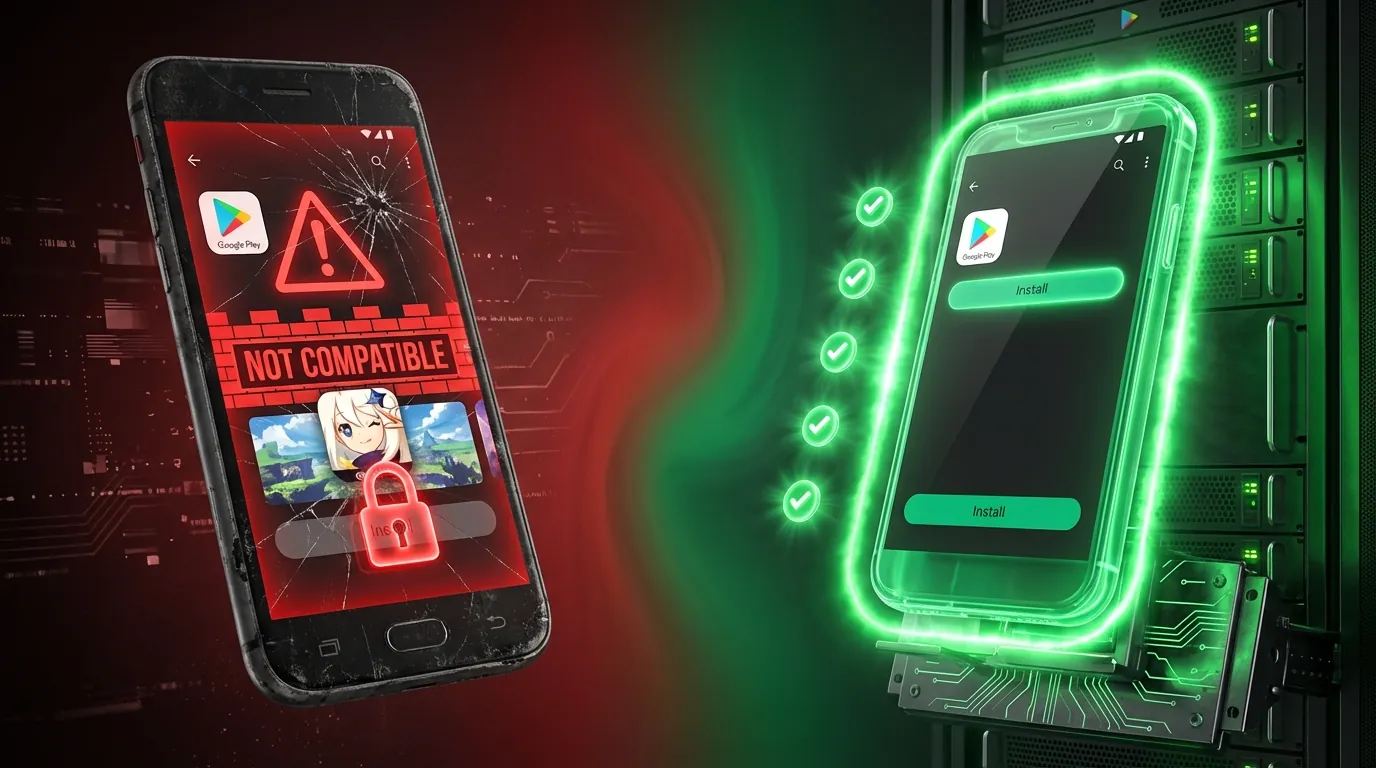
You tap "Install" on Genshin Impact in Google Play — the screen displays: "Your device isn't compatible with this version." No install button. No download option. No explanation.
The "Device Not Compatible" error (or "Your device isn't compatible with this version") is a message from Google Play Store when the system detects that your device fails to meet at least 1 of the app's technical requirements. Google Play checks 5 key factors: Android OS version, CPU architecture (ARM or x86), root/integrity status, CTS profile, and geographic region. When any factor fails, Google Play completely hides the "Install" button — you cannot download the app, even if the hardware is powerful enough to run it. Cloud Phone technology — a real Android device running in the cloud — is explained in detail in What Is Cloud Phone. This article focuses on a specific problem: why the error occurs and how to fix it permanently.
In this guide, you'll learn:
- 5 root causes of the "Device Not Compatible" error — from outdated Android to region locks
- 5 step-by-step fixes — ranked by effectiveness
- The permanent solution — real ARM Cloud Phone passes every compatibility check
5 Root Causes of the "Device Not Compatible" Error
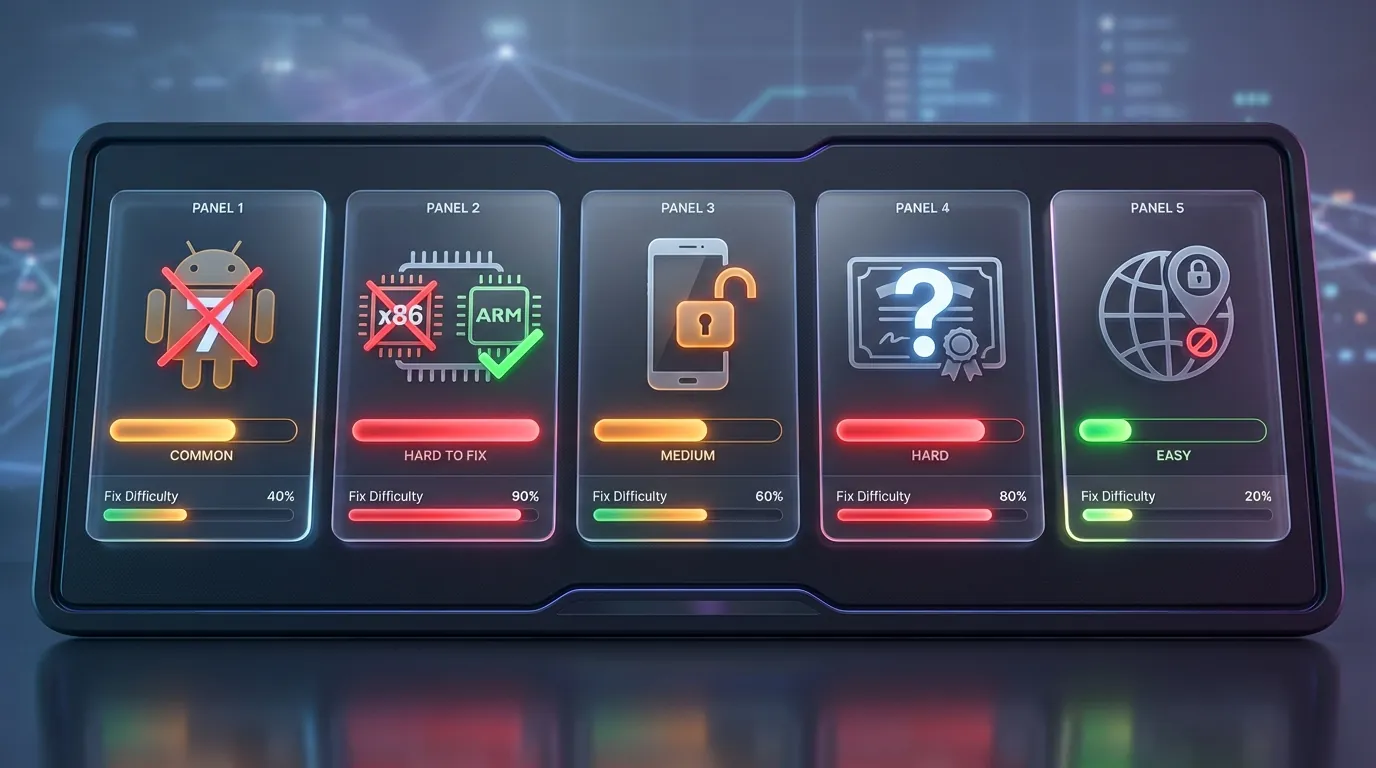
Google Play checks 5 key factors when determining device compatibility — failing any one completely blocks the app:
Outdated Android Version — App Requires a Newer OS
The most common cause. Developers set minSdkVersion in the app manifest — for example, Genshin Impact requires Android 8.0 (API 26) or higher, and Honkai: Star Rail requires Android 9.0 (API 28). Devices running Android 7 or lower are automatically blocked.
Check your Android version: Settings → About Phone → Android Version. If the device no longer receives OS updates (end of manufacturer support lifecycle) → software fixes alone will not resolve the issue.
x86 Architecture — Device Does Not Use ARM Chip
Some older devices (Intel Atom tablets, PC-based emulators) run x86 architecture — while most mobile games are compiled for ARM (armeabi-v7a, arm64-v8a). When an app has no native x86 build, Google Play reports a compatibility error.
Android emulators on PC (LDPlayer, BlueStacks, NoxPlayer) run on Intel/AMD x86 CPUs → they use binary translation to convert ARM instructions to x86. This translation layer adds 15-30% overhead and sometimes crashes entirely with apps using NDK native code — resulting in Google Play showing "not compatible" despite the emulator running other apps fine.
Rooted Device — Play Integrity Check Failed
Root access (granting highest system-level permissions) causes the device to fail Play Integrity check — Google's security system for verifying unmodified devices. Many banking apps, games with anti-cheat features, and streaming apps (Netflix) refuse to install on rooted devices.
Play Integrity API — according to Android Developer Documentation — checks 3 levels: Device Integrity (hardware unmodified?), App Integrity (original APK from Play Store?), and Account Integrity (Google account clean?). Root → fail Device Integrity → Google Play blocks the app.
Invalid CTS Profile — Google Does Not Recognize the Device
CTS (Compatibility Test Suite) is a test suite that Google requires every manufacturer to pass before being allowed to ship Google Play Services. Devices from smaller manufacturers, custom ROMs, or uncertified devices may have no valid CTS profile → Google Play doesn't recognize the device → error appears.
Region Restriction — App Not Available in Your Country
Developers restrict apps by country — due to content licensing, legal regulations, or publishing strategy. For example: some Japanese games are only available in JP region, and streaming apps like Hulu are US-only. Google Play checks IP address + Google Account region to determine location.
Fix 1 — Update Android and Clear Google Play Cache
Updating Android and clearing Google Play cache resolves errors caused by outdated versions and temporary cache issues — fixes cause #1.
Step 1 — Update Android:
- Open Settings → System → System Update (or Software Update)
- Check your current Android version — if below Android 10, many apps will be incompatible
- Download the latest update (if available) → restart the device
Step 2 — Clear Google Play Cache:
- Open Settings → Apps → Google Play Store
- Select Storage & Cache → Clear Cache → Clear Data
- Repeat for Google Play Services and Google Services Framework (enable Show System Apps)
- Restart the device → open Google Play → try downloading the app again
📌 Pro Tip: Clearing Google Play cache sometimes resets the "device map" that Google stores — the device gets re-identified, which can resolve temporary errors.
Fix 2 — Uninstall Google Play Store Updates
Uninstalling Google Play updates reverts the app to its factory version — fixes cases where the Play Store itself is buggy after an update.
- Open Settings → Apps → Google Play Store
- Tap the 3-dot menu (top right) → Uninstall Updates
- Confirm uninstalling updates → Google Play reverts to the factory version
- Open Google Play → let it auto-update to the latest version
- Try downloading the app again
This removes bugs introduced by recent updates. If the error is caused by a faulty Google Play Store update → this fix resolves it immediately.
Fix 3 — Sideload APK from Trusted Sources
Sideloading APK bypasses Google Play's compatibility check — fixes cases where the device is capable of running the app but Google Play blocks it.
- Download the APK file from trusted sources: APKMirror.com, APKPure.com, or Uptodown.com
- Enable Settings → Security → Install Unknown Apps → allow browser to install APKs
- Open the downloaded APK file → tap Install
- Verify the app works correctly
⚠️ Warning: Sideloading APK bypasses Google Play's compatibility check — the app may install but crash at launch if the actual cause is missing hardware support (x86 CPU, low RAM). Only download APKs from the 3 trusted sources listed above — avoid unknown websites due to malware risk.
Fix 4 — Use VPN or Change Google Account Region
VPN changes your IP address, enabling access to Google Play from a different country — fixes cause #5 (region lock).
- Install a VPN (e.g., NordVPN, ExpressVPN, Windscribe Free) → connect to a server in the country where the app is available
- Clear Google Play Store cache (see Fix 1)
- Open Google Play → search for the app → the Install button appears if the region matches
Advanced method — change Google Account region:
- Open play.google.com in a browser → Settings → Account → Country/Region
- Add a valid payment method for the new country (Google requirement)
- Wait 24-48 hours for Google to update the region → download the app
📌 Note: Google allows region changes once per year maximum. VPN is a more flexible solution for downloading apps from multiple countries.
Fix 5 — Use Cloud Phone: The Permanent Fix for Every App
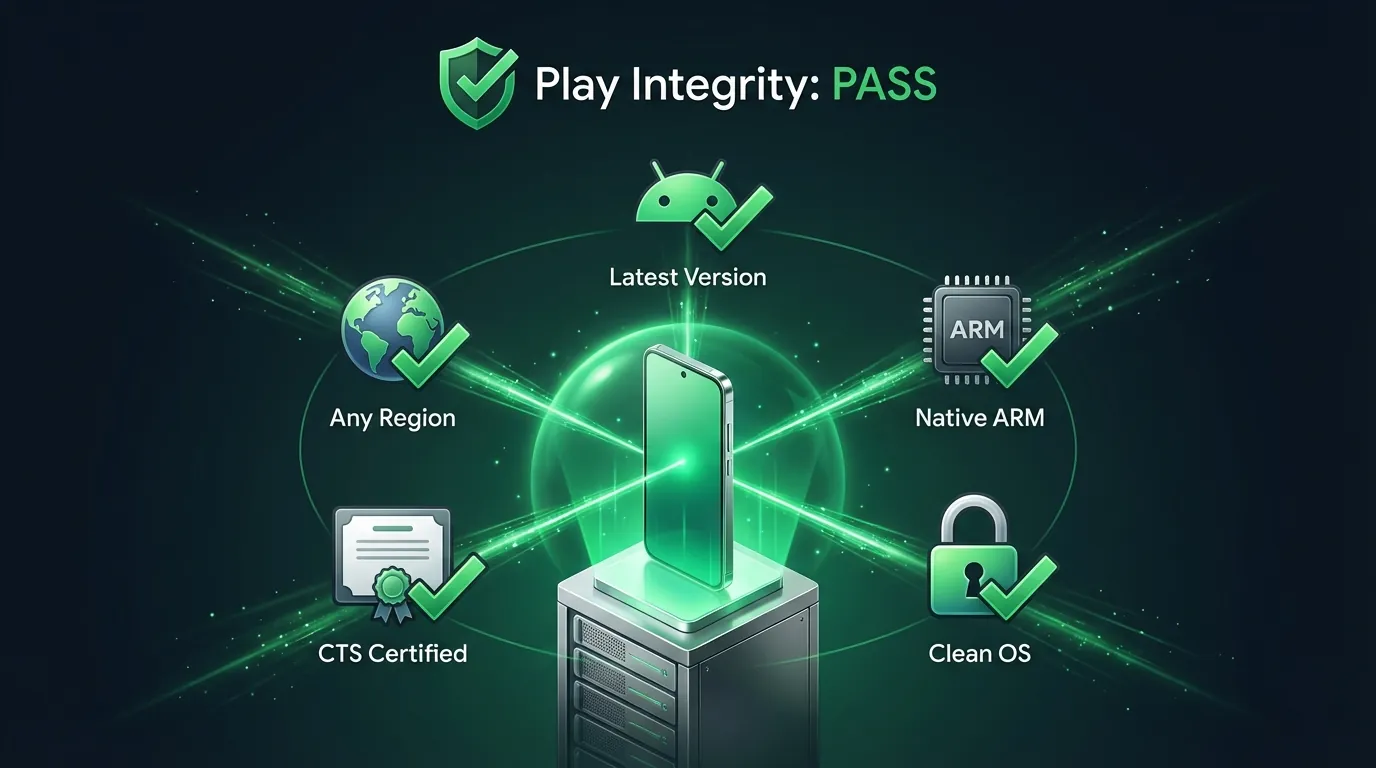
Cloud Phone resolves all 5 causes simultaneously — this is not a temporary workaround but a permanent solution:
Setting up Cloud Phone to download "incompatible" games takes 3 minutes:
- Sign up for XCloudPhone → create a new Cloud Phone
- Open Google Play on the Cloud Phone → log into your Google account
- Download any app — all apps show the Install button because the device passes every compatibility check
Cloud Phone is ideal for 3 scenarios: old phones that can't update Android, office PCs running emulators with compatibility errors, and region-locked games requiring foreign servers. Cost: ~$10/month — cheaper than buying a new phone.
Frequently Asked Questions About "Device Not Compatible"
"Is Sideloading APK Safe?"
Safe if downloaded from trusted sources — APKMirror, APKPure, and Uptodown verify APK signatures to ensure original developer files. Downloading from unknown websites → risk of malware, adware, or spyware. However, sideloading doesn't guarantee the app works — if hardware support is missing (ARM instruction set), the app still crashes after installation.
"Why Do Emulators Also Get the "Device Not Compatible" Error?"
Android emulators on PC (LDPlayer, BlueStacks, NoxPlayer) run on x86 CPUs (Intel/AMD) — using binary translation to convert ARM instructions. Google Play detects the device's actual architecture — x86 translators can't pass compatibility checks for many NDK-heavy games. Additionally, emulators typically fail Play Integrity because Google identifies them as non-genuine Android devices. The architectural difference between Virtual Android and Real Android explains why binary translation adds 15-30% overhead and why real ARM always passes compatibility checks.
"Can Cloud Phone Download Every App on Google Play?"
Real ARM Cloud Phone downloads 99%+ of apps on Google Play — including graphics-intensive games (Genshin Impact, Honkai: Star Rail, and PUBG Mobile), banking apps, and streaming applications. Rare exceptions: apps requiring specialized hardware (NFC chip for contactless payments, IR camera for 3D facial recognition) that Cloud Phone doesn't have. However, 99% of gaming and common app download needs are fully met.
"Device Not Compatible" — 5 Causes, 5 Permanent Fixes
The "Device Not Compatible" error has 5 clear causes — each with its own fix. Start with Fix 1 (update + clear cache) because it's the simplest. If that doesn't work, try sideloading APK (Fix 3). If the root cause is hardware (x86, non-updatable Android) → Cloud Phone is the only solution that doesn't require buying a new device. Cloud Phone is a real Android device running in the cloud — the permanent fix for all compatibility errors.
3 steps right now:
- Check the cause: Settings → About Phone → view Android version and chipset
- Try Fixes 1-4 in order — from simplest to most advanced
- Consider Cloud Phone if your device is too old or doesn't support ARM — every app compatible, 3-minute setup
→ Try Cloud Phone — download any app without limits
References:
- Google Play Integrity API — Android Developer Documentation
- Android CTS (Compatibility Test Suite) — Android Open Source Project
- App Not Compatible — Google Play Help — Google Support
- APKMirror — Trusted APK Downloads — APKMirror