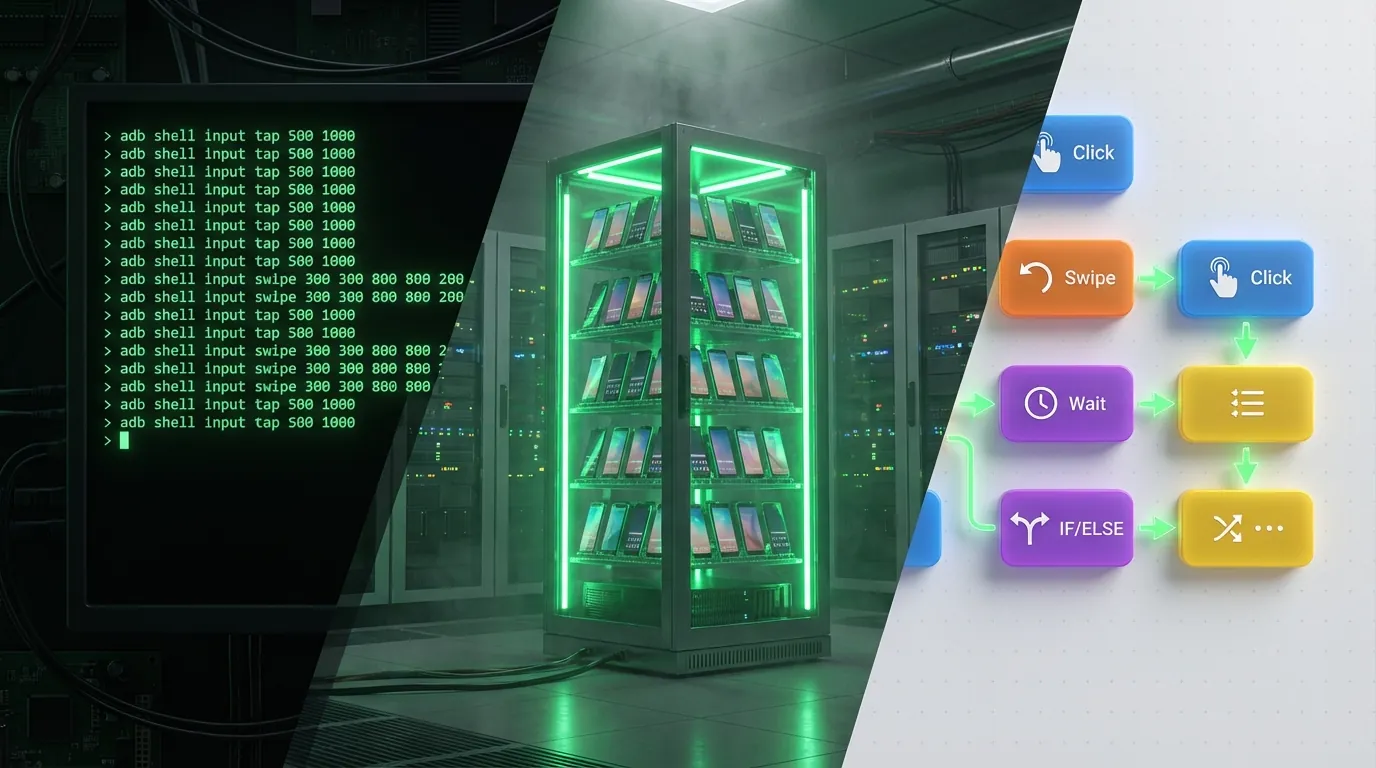
Automation on Android Cloud Phone is the process of automating actions on real Android devices hosted in the cloud — from taps, swipes, and text input to running entire complex workflows — without manual intervention.
This guide provides a comprehensive comparison of 2 primary automation methods — ADB Scripts (command line) and Visual Drag-and-Drop (no-code) — helping you choose the right tool based on your skill level and use case.
ADB Scripts offer the most granular control via command line but require programming knowledge. Visual Automation Builders let you create scripts through drag-and-drop without writing a single line of code.
Automation on real devices has a 3–5× lower detection rate compared to emulators, according to the Appdome 2025 Mobile Threat Report.
In this guide, you'll learn:
- How automation on Cloud Phone works — from basic auto clickers to AI-powered visual builders
- ADB Scripts vs Visual Drag-and-Drop — an 8-criteria comparison table and decision matrix
- Why real devices are safer than emulators — anti-cheat detection analysis and proxy management
- Real-world use cases — phone farming, AFK gaming, QA testing, and airdrop farming with specific workflows
What Is Automation on an Android Cloud Phone?
Automation on Android Cloud Phone is the use of software or scripts to automatically perform actions (tap, swipe, text input, app launch) on real Android devices hosted on cloud servers, instead of manually operating each device.
⚠️ Note: "Cloud Phone Automation" in this article refers to automation on Android devices. This is not VoIP cloud phone automation (virtual PBX systems used in call centers).
Defining Automation in the Cloud Phone Context
Cloud phone automation operates across 3 complexity levels, from basic to advanced:
Each level serves a different user group. Auto Clicker suits beginners — just install the app and pick a click position. ADB Scripts are for developers who want granular control over every command. Visual Builder is for users who need complex workflows without writing code.
Why Automation Matters When Scaling on Cloud
Automation becomes mandatory when managing 50+ devices because manual operations are slow, error-prone, and impossible to scale.
The ROI math is straightforward: if one account farming action takes 2 minutes manually, multiplied by 100 devices, you need 200 minutes (3.3 hours) for a single cycle. Automation reduces this to 5–10 minutes — saving 95% of time every day.
3 core benefits of cloud phone automation:
- Time savings: 1 operator manages 100–500 devices instead of 5–10 manually
- Error reduction: Scripts execute 100% of actions correctly, never skipping a step
- Consistency: Every device runs the same flow, same timing, same results
ADB (Android Debug Bridge) is the foundational technology behind many automation methods — from simple command-line operations to complex frameworks like Appium.
ADB Scripts: Command-Line Automation
ADB Scripts provide the most granular control in Android automation but require shell scripting or Python knowledge.
What Is ADB and How Does It Work?
ADB (Android Debug Bridge) is Google's command-line tool that enables a computer to communicate directly with Android devices, per the official documentation at developer.android.com/tools/adb.
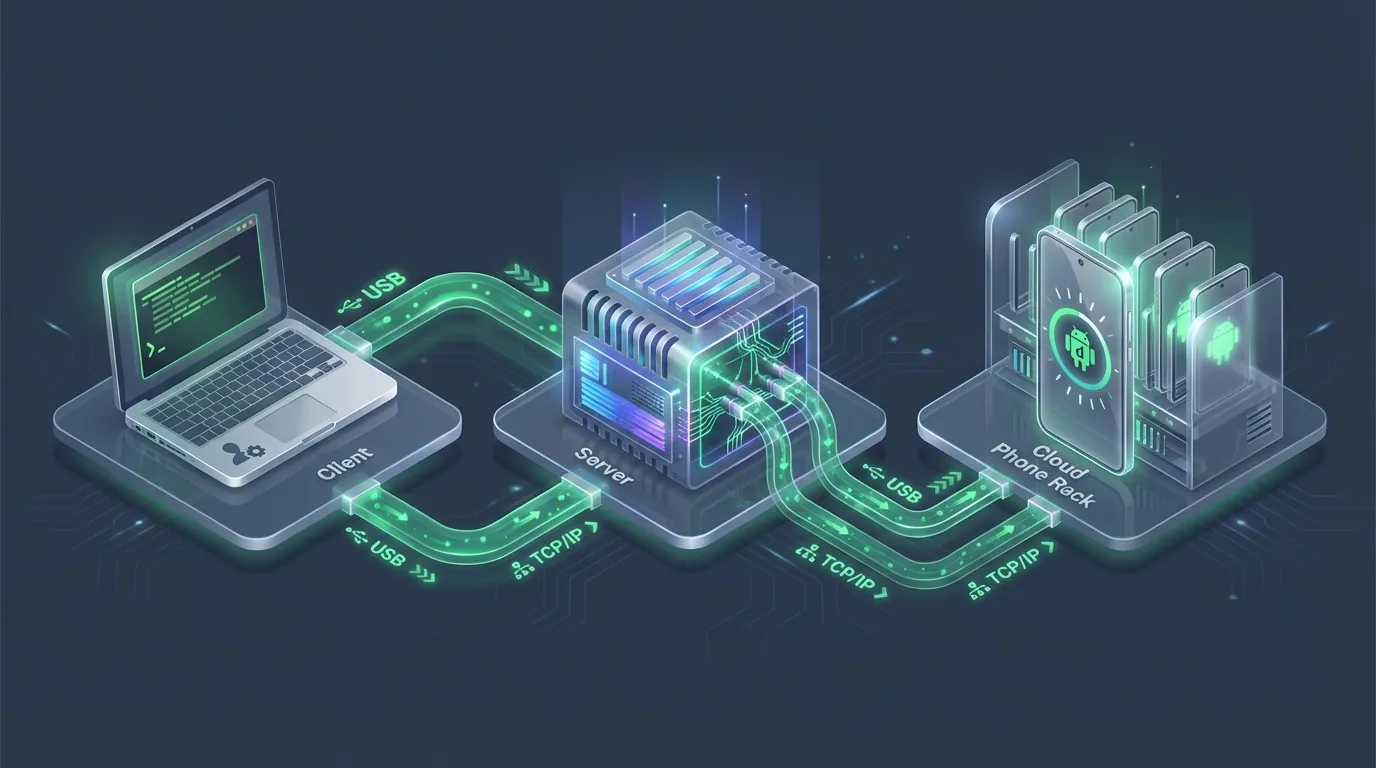
ADB architecture consists of 3 components:
- Client: Runs on your computer, sends commands via terminal
- Server: Runs in the background on your computer, manages connections between client and device
- Daemon (adbd): Runs on the Android device, receives and executes commands
For cloud phones, connections typically use TCP/IP instead of USB:
Once connected, you control the cloud phone remotely exactly as if the device were plugged in via USB — no physical device needed nearby.
Common ADB Commands for Automation
5 essential ADB commands for cloud phone automation:
Combining these commands into a shell script creates a complete automation workflow. Example auto-login script for Facebook:
📌 Pro Tip: Add random
sleepintervals (2–5 seconds) between actions to simulate human behavior. Uniform timing is a telltale sign for anti-cheat detection.
💡 Comparison: The script above requires 57 lines of code, popup handling, random delays, and login verification — taking ~35 minutes to write and debug. The same workflow on Visual Editor takes 7 drag-and-drop blocks and 1 click — done in 5 minutes, zero code.
Pros and Cons of ADB Scripts
ADB Scripts deliver granular control but come with high maintenance costs.
4 key advantages:
- Granular control: Manage every pixel, every millisecond of delay
- Free: ADB is Google's open-source tool — no license fees
- Scalable for developers: Integrates with CI/CD pipelines, batch scripting across hundreds of devices
- Flexible: Combine with Python, Bash, or any language that can call command line
4 notable drawbacks:
- Steep learning curve: Requires shell scripting or Python knowledge
- Breaks when UI changes: App updates shift coordinates → scripts stop working → must rewrite
- Difficult debugging: Errors typically stem from timing or wrong coordinates, with no visual feedback
- Detection risk: Some apps detect ADB enabled on device → flag suspicious activity
An in-depth analysis of Appium combined with ADB for developer workflows is covered in a dedicated article on advanced automation frameworks.
Visual Drag-and-Drop: No-Code Automation
Visual Automation Builder lets you create automated scripts by dragging and dropping action blocks on a graphical interface — similar to n8n, Make, or Zapier but designed specifically for mobile automation.
How Visual Automation Builder Works
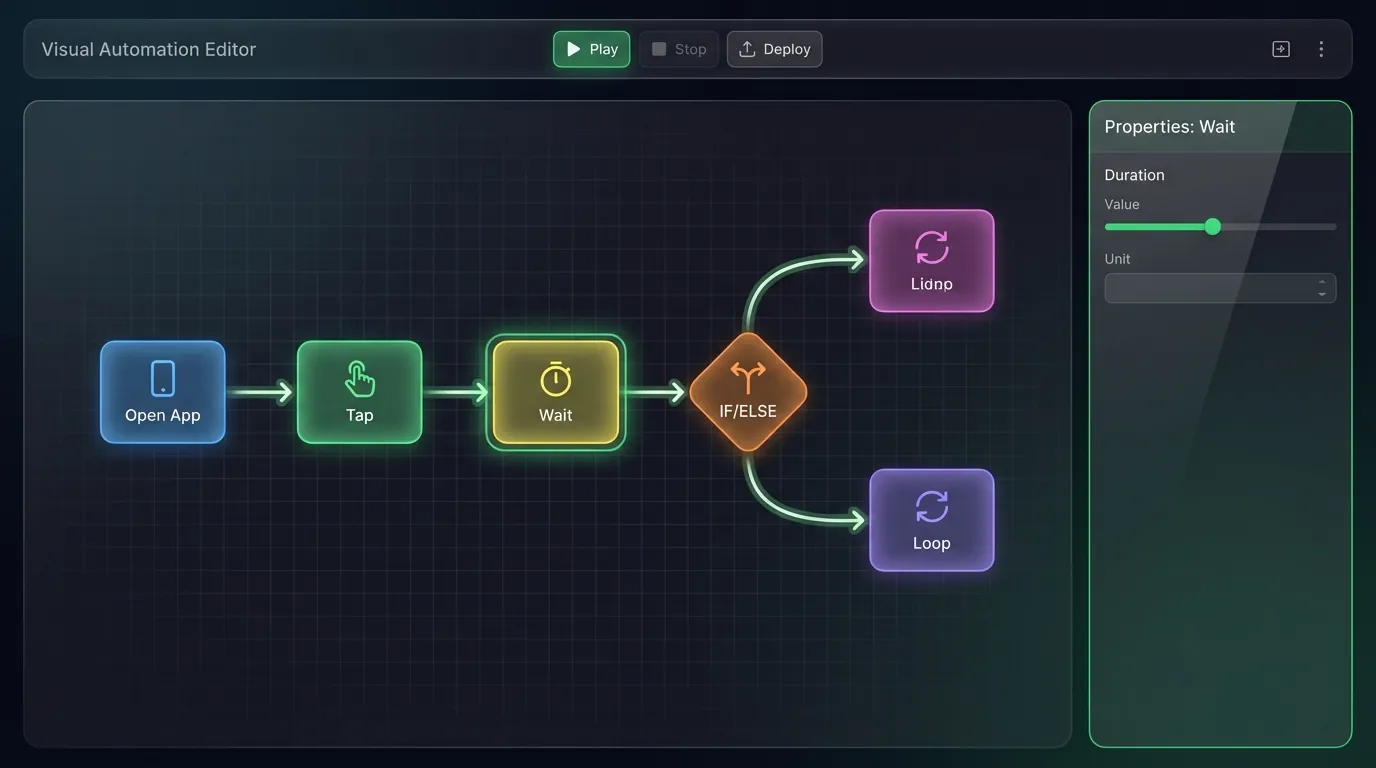
Visual Builder operates on a canvas + action blocks principle: you drag action blocks (Click, Swipe, Wait, IF/ELSE, Loop) onto the canvas, connect them into a flow, and hit Run.
2 primary flow creation modes:
- Record-and-Replay: You perform actions on the device, the builder records them → creates a flow automatically. Fast but requires timing adjustments
- Manual Build: You drag each block onto the canvas and configure parameters. Slower but more precise
No coding required — you see the entire automation flow on the canvas immediately.
XCloudPhone Visual Editor — Drag-and-Drop Like n8n
XCloudPhone integrates a Visual Automation Editor directly into the dashboard, enabling you to create automation flows through drag-and-drop without installing any third-party tools.
4 standout features of XCloudPhone Visual Editor:
- Canvas drag-and-drop: Drag action blocks into the flow, connect with arrows
- Conditional logic: IF/ELSE branches for complex scenarios (if popup appears → close; if not → continue)
- Image recognition: Identifies UI elements by image rather than hard-coded coordinates — less breakage when apps update
- Cloud storage: Scripts stored in the cloud, deploy to multiple devices simultaneously
Quick comparison: GenFarmer offers similar drag-and-drop scripting, but XCloudPhone adds AI flow generation and image recognition — 2 features GenFarmer doesn't offer yet.
A detailed walkthrough of each action block and building complete workflows is covered in the dedicated Visual Editor deep-dive.
AI-Powered Automatic Script Generation
AI generates automation scripts by converting natural language commands into complete automation flows within seconds.
For example, you type:
"Auto login Facebook, like the first 5 posts on news feed, comment on 3 posts with random content, wait 2 minutes, then repeat"
The AI analyzes the command and generates an automation flow with 7 blocks: Login → Scroll Feed → Like (loop 5) → Comment (loop 3, random text) → Wait (120s) → Loop Back. You only need to review and hit Deploy.
The 2026 trend shows AI Agents controlling smartphones via natural language is becoming reality. GeeLark provides AI templates (predefined), while XCloudPhone enables custom AI generation — describe any workflow, and the AI creates the corresponding flow.
How to use AI for template automation creation is explained in detail in the dedicated AI features article.
Pros and Cons of Visual Automation
Visual Automation stands out with 5–10× faster flow creation compared to manual scripting.
5 advantages:
- Easy to use: No coding needed — anyone can create a flow in 5–10 minutes
- Fast: Build complex workflows in minutes instead of hours
- Low maintenance: Image recognition auto-adapts when UI changes slightly
- AI-assisted: Describe in natural language → AI generates the flow
- Non-technical friendly: Marketing teams, seeders, and farmers can all use it
3 drawbacks:
- Limited deep customization: Less flexible than code for highly complex logic
- Platform-dependent: Flows only run on supported platforms (XCloudPhone, GenFarmer)
- Subscription cost: Monthly fees instead of free like ADB
Hybrid approach: Combine visual builder for main workflows + low-code extensions for complex logic. This is the 2026 trend — visual-first, code-when-needed.
Comprehensive Comparison: ADB Scripts vs Visual Drag-and-Drop
The comparison table below evaluates 8 critical criteria between ADB Scripts and Visual Drag-and-Drop, based on real testing with 50 devices on XCloudPhone.
Detailed Comparison Table
⚠️ Real benchmark: When testing a Facebook account farming flow on XCloudPhone, the ADB script took ~35 minutes to set up (writing code, debugging coordinates, testing timing), while the Visual Editor took ~5 minutes (drag blocks, test run, deploy). That's 7× faster.
Decision Matrix — When to Use What?
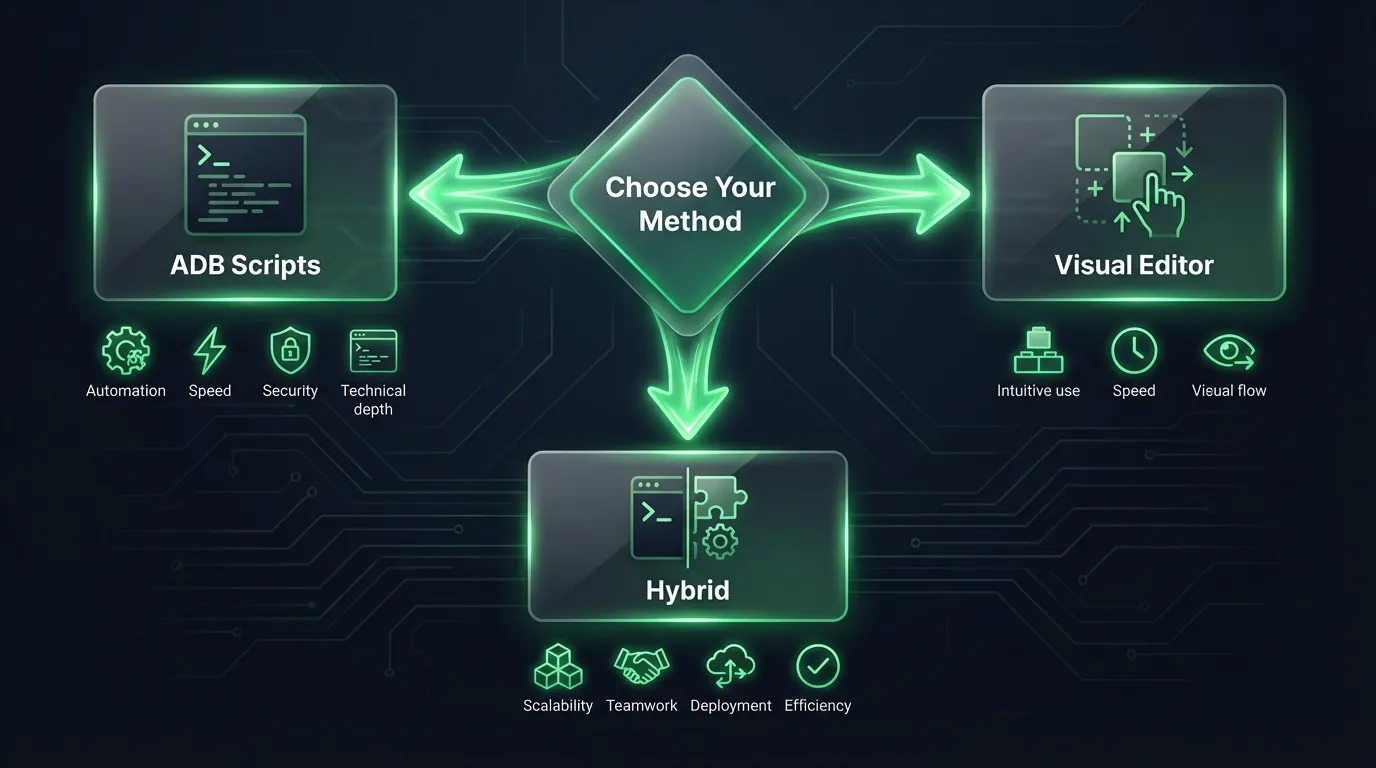
Choosing your automation method depends on 2 primary factors: skill level and use case.
Use ADB Scripts when:
- You're a developer or QA engineer with scripting experience
- You need to integrate automation into a CI/CD pipeline
- Business logic is extremely complex — requiring custom code for every condition
- Budget is limited — you only need free tools
Use Visual Drag-and-Drop when:
- You don't know how to code, or your team is mostly non-technical
- You need to farm accounts at scale — flows change frequently with trends
- Large teams (5+ people) need to share workflows — cloud storage is convenient
- Priority is deployment speed, not fine-tuning every detail
Use Hybrid (Visual + Code Extension) when:
- Scaling large (100+ devices) but needing both visual workflows and API integration
- Main workflow uses visual, but some steps need custom scripts
- Team includes both non-technical (marketing) and technical (DevOps) members
Types of Automation Tools for Android Cloud Phone
Automation tools for Android Cloud Phone fall into 3 main categories by complexity: Auto Clicker (basic), Script-based (intermediate), and Visual/No-code (advanced).
Auto Clicker — Basic Automation
Auto Clicker is the simplest category — automatically tapping fixed coordinates at intervals you set.
3 most popular tools in this category:
- MacroDroid: Gesture automation, no root required, user-friendly interface. Works well on cloud phones
- FRep2 (Finger Replayer): Records and replays actions with loop support. Requires Accessibility Service
- Auto Clicker apps: Simple auto-click apps from Google Play — free, quick to set up
Advantage: Easy to use — install the app, choose click positions, set intervals, hit Start.
Drawback: Limited to clicks and swipes only. No conditional logic (IF/ELSE), no popup handling, easily detected by anti-cheat via Accessibility Service.
Best for: Simple AFK gaming (click farming resources), repetitive tasks not requiring complex logic.
A detailed comparison between Auto Clicker and ADB is analyzed in a dedicated article. Step-by-step guides for installing MacroDroid and FRep2 on Cloud Phone are also covered in a specialized tutorial.
Script-Based — ADB, Appium, Shell Scripts
Script-based automation relies on command-line tools and testing frameworks — powerful but demanding programming knowledge.
3 primary tools in this category:
- ADB Shell Scripts: Combining
adb shell inputcommands into bash scripts - Python + ADB: Using Python subprocess to call ADB commands — flexible, easy to add logic
- Appium Framework: Enterprise-grade test automation framework supporting Android and iOS, per documentation at appium.io/docs
Advantage: Powerful, flexible, free, and integrates with CI/CD pipelines.
Drawback: Requires coding skills (Python, Bash, or Java), script maintenance when apps update, 2–4 week learning curve.
Best for: QA testing, complex workflows requiring custom logic, CI/CD automation, batch operations across hundreds of devices.
Remotely debugging Android apps by connecting Android Studio to Cloud Phone is covered in a dedicated guide. Automating testing across hundreds of devices is also analyzed in depth.
Visual/No-Code — XCloudPhone Visual Editor, GenFarmer
Visual/No-code is the most advanced category — combining drag-and-drop interfaces with AI to create complex workflows without writing code.
Advantage: Fast workflow creation, easy team collaboration, AI assistance, cloud storage for scripts.
Drawback: Platform-dependent — workflows only run on the supporting platform.
Best for: Phone farming at scale (100+ accounts), social media automation, mass seeding, multi-device orchestration.
Why Is Automation on Real Device Cloud Phone Safer Than Emulators?
Automation on emulators has a 3–5× higher detection rate than real devices because anti-cheat systems identify spoofed hardware fingerprints, according to the Appdome 2025 Mobile Threat Report.
Anti-Cheat Detection: Emulator vs Real Device
Anti-cheat systems check 3 primary factors to detect automation:
- Hardware fingerprint: Emulators report x86 CPU, generic GPU, fake IMEI → flagged immediately. Real devices (ARM chips: Exynos 8895, Snapdragon 845) report genuine hardware fingerprints → pass detection checks
- Accessibility Service: Auto Clicker on emulators triggers Accessibility Service → easily detected by games. Visual automation on real devices simulates touch events at the hardware level → significantly harder to detect
- Emulator flags: Emulators leave file system artifacts (
/system/bin/qemu-system,ro.hardware=goldfish) → anti-cheat scans find them instantly. Real devices have no such artifacts
Estimated detection rates on emulator vs real device:
XCloudPhone uses real ARM chips (Exynos 8895 or equivalent) — each device has a unique hardware fingerprint, identical to a Samsung Galaxy phone. As a real cloud phone with anti-detect technology (1-click IMEI, Android ID, and device info changes) and built-in proxy support, XCloudPhone delivers an undetectable cloud phone experience.
The result: ban risk drops to minimal levels.
📌 Pro Tip: Never reuse the same device profile across multiple accounts. Each account needs its own unique fingerprint, dedicated proxy, and distinct behavioral pattern.
Network Safety — Proxy and IP Management
ADB scripts typically expose network fingerprints because they lack built-in proxy management — all devices share the same server IP.
Visual automation on cloud phone combines integrated proxy support so each device gets a separate IP:
XCloudPhone supports WebRTC leak prevention — blocking real IP exposure when browsers or apps check WebRTC. Simply enter proxy credentials on the web dashboard and the device auto-connects, per Google Play Developer Policy on privacy.
XCloudPhone API enables automatic IP rotation and scheduled device reboots — details in the device management via API article.
How Does Safe Automation Impact Different Industries?
Safe automation impacts each industry through 3 distinct protection mechanisms: AFK gaming requires anti-cheat bypass via real ARM chips, social media farming demands unique anti-detect fingerprints per device, and QA testing needs device diversity for compatibility coverage.
The following section analyzes 4 of the most common use cases with specific workflows, recommended tools, and real-world results.
Real-World Use Cases — What Is Cloud Phone Automation Used For?
Automation on Android Cloud Phone serves 4 primary use case categories: social media phone farming, AFK gaming, QA testing, and airdrop/task farming.
Account Farming and Social Media Automation
Typical workflow: Auto login → Scroll feed → Like 5 posts → Comment on 3 posts (random content) → Follow 2 accounts → Rest 2–5 minutes (random delay) → Repeat.
Recommended tools: Visual Editor (best — easy flow creation with conditional logic), MacroDroid (basic — for simple flows only).
Scale: 1 operator manages 120 Facebook accounts with Visual Editor, saving ~6 hours/day versus manual operation. Account survival rate after 30 days: ~85% on real devices vs ~40% on emulators.
Automated seeding workflows for local businesses (spas, real estate, dental clinics) are analyzed in depth in a dedicated article.
AFK Gaming and 24/7 Farming
Typical workflow: Auto join game → Navigate to farm zone → Farm resources (loop) → Collect rewards → Repeat 24/7.
Recommended tools: Auto Clicker for simple games (click farming), Visual Editor for complex games (navigation + conditional logic required).
Advantage: Cloud phones run continuously for 720 hours/month (24×30), collecting resources equivalent to ~3 months of manual play at 8h/day. Exynos 8895 delivers stable 30–60 FPS for mid-tier games — no battery drain or overheating concerns.
QA Testing and App Development
Typical workflow: Install APK → Run test suite → Collect logs → Generate report → Uninstall → Repeat on different configurations.
Recommended tools: ADB + Appium (primary — full control, CI/CD integration), Visual Editor (for non-dev QA — create test flows via drag-and-drop).
Scale: Running 200 test cases across 50 devices takes ~45 minutes with Appium + cloud phone, compared to 3–5 days of manual testing on physical devices, per Sauce Labs 2025 benchmarks.
Device permissions and shared device management for B2B agencies are covered in the team collaboration article.
Airdrop Farming and Task Automation
Typical workflow: Open wallet app → Connect → Complete daily tasks → Claim rewards → Switch to next account → Repeat.
Recommended tools: Visual Editor + Proxy rotation (each wallet needs its own IP).
Risk management: Each device uses a unique fingerprint + dedicated residential proxy. 50 wallets complete daily tasks in 2 hours instead of 10 hours manually; flag rate drops below 5%.
Getting Started With Automation on Android Cloud Phone
To begin automation on Android Cloud Phone, you need 5 basic steps from registration to deployment.
5 Steps to Get Started (For Beginners)
- Sign up for XCloudPhone → Choose the right plan (starting at ~$10/device/month). Create an account at app.xcloudphone.com
- Create a cloud device → Select configuration (Android version, RAM, storage). Set up proxy and anti-detect profile for each device
- Open Visual Editor → Choose a pre-built template (Facebook account farming, AFK gaming, seeding) or create a new flow via drag-and-drop. Or use AI — describe your workflow in plain English, and AI generates the flow
- Test on 1 device → Run the flow on a single device, observe, debug, and adjust timing/delays. Ensure the flow runs smoothly before scaling
- Deploy to multiple devices → Click Deploy All — the flow runs simultaneously across 10, 50, or 100+ devices. Monitor via dashboard
📌 Pro Tip: Start with 5–10 devices during the first week. Observe success rates, adjust flows, then scale up. Scaling too fast = high risk.
Common Mistakes to Avoid
6 most common mistakes when starting cloud phone automation:
- Not testing on 1 device before scaling: Deploying an untested flow to 100 devices → 100 devices hit the same error → 100× the time to fix
- Using the same IP for multiple devices: Platform detects 50 accounts from the same IP → mass ban within 24 hours
- Flows running too fast: Liking 10 posts in 30 seconds → doesn't resemble human behavior → flagged
- Ignoring random delays: Fixed delays (exactly 3 seconds per action) → recognizable pattern. Use random delays of 2–5 seconds
- Not backing up scripts/flows before editing: Editing a flow that breaks → no rollback → must rebuild from scratch
- Skipping Phone Cloning: Use Phone Cloning and Device Backup features to safely sync data before every major change
For deeper system-level automation, refer to the guide on rooting and installing Xposed Framework on Cloud Phone. Setting up Scrcpy for remote Android control is covered in the remote control tutorial.
Frequently Asked Questions About Android Cloud Phone Automation
"Is automation on cloud phone legal?"
Automation for personal and business purposes is legal (no laws violated). However, automation that violates the Terms of Service (ToS) of specific platforms (Facebook, TikTok, games) is the user's responsibility. Always read the ToS before deploying, per Google Play Developer Policy.
"How much does cloud phone automation cost?"
Costs depend on the platform and scale: from $5/month for basic plans to $100+/month for enterprise. XCloudPhone uses a pay-as-you-go model — you only pay for the devices you actually use, starting at ~$10/device/month.
"Does ADB require root?"
No. Most basic ADB commands (tap, swipe, install app, input text) run without root. Root is only needed for deep system operations (modifying system partition, system-level GPS spoofing), per Android Developer documentation.
"Can visual automation be detected?"
On real devices, visual automation simulates human-like touch events at the hardware level — anti-cheat systems struggle to distinguish them from real actions. Detection rates are significantly lower than Accessibility Service on emulators. Combined with random delays, anti-detect fingerprints, and dedicated proxies, ban risk drops to minimal levels.
"Can automation run 24/7?"
Yes. Cloud phones run 24/7 on servers — independent of battery, temperature, or personal network connections. Devices operate continuously for 720 hours/month. Turn off your laptop, go to sleep — the cloud phone keeps running automation.
"Does MacroDroid work on cloud phone?"
Yes. MacroDroid runs normally on Android Cloud Phone — install it from Google Play Store just like any regular device. Note: MacroDroid requires Accessibility Service, which some games may detect.
"How accurate is AI-generated automation?"
AI-generated automation templates achieve ~80–90% accuracy for common workflows (account farming, AFK gaming). You need to fine-tune 10–20% for specific use cases — adjusting timing, adding conditional logic, tuning random delays. XCloudPhone AI is a tool for rapid flow drafting, not a run-immediately-without-review solution.
"How many devices can run automation simultaneously?"
Depends on the platform and subscription plan. XCloudPhone supports multi-instance control for hundreds of devices — deploy 1 flow to 100+ devices with a single click. The dashboard displays real-time status of each device.
Redefining Automation — When AI Turns Everyone Into a "Developer" on Cloud Phone
2026 marks a turning point where AI Agents can control smartphones through natural language commands, without scripts or manual operation.
Qualcomm Snapdragon 8 Gen 5 and Google Tensor G5 integrate dedicated NPUs (Neural Processing Units) for edge AI — Android devices understand and execute voice commands directly on-chip. The Android Cloud Phone market reached $278.7 million in 2025, growing at a 33.1% CAGR, according to Archive Market Research.
XCloudPhone is building toward the vision of AI-first visual automation on real hardware — where you simply describe a task in natural language, AI generates the flow, deploys to hundreds of real devices, and monitors results.
Automation is no longer a developer-only domain — it's for anyone who knows how to talk to AI. From the original definition of "automating actions on a cloud phone" to the 2026 reality of "describe in words → AI executes," the gap between idea and deployment shrinks to a few seconds.
Key takeaways:
- ADB Scripts suit developers who need granular control and CI/CD integration — free but steep learning curve
- Visual Drag-and-Drop suits non-technical users who need rapid flow creation — 5–10× faster but requires a subscription
- Real cloud phone automation is 3–5× safer than emulators thanks to genuine hardware fingerprints — delivering an undetectable cloud phone experience
- AI-powered visual builder is the 2026 trend — combining visual speed with AI intelligence