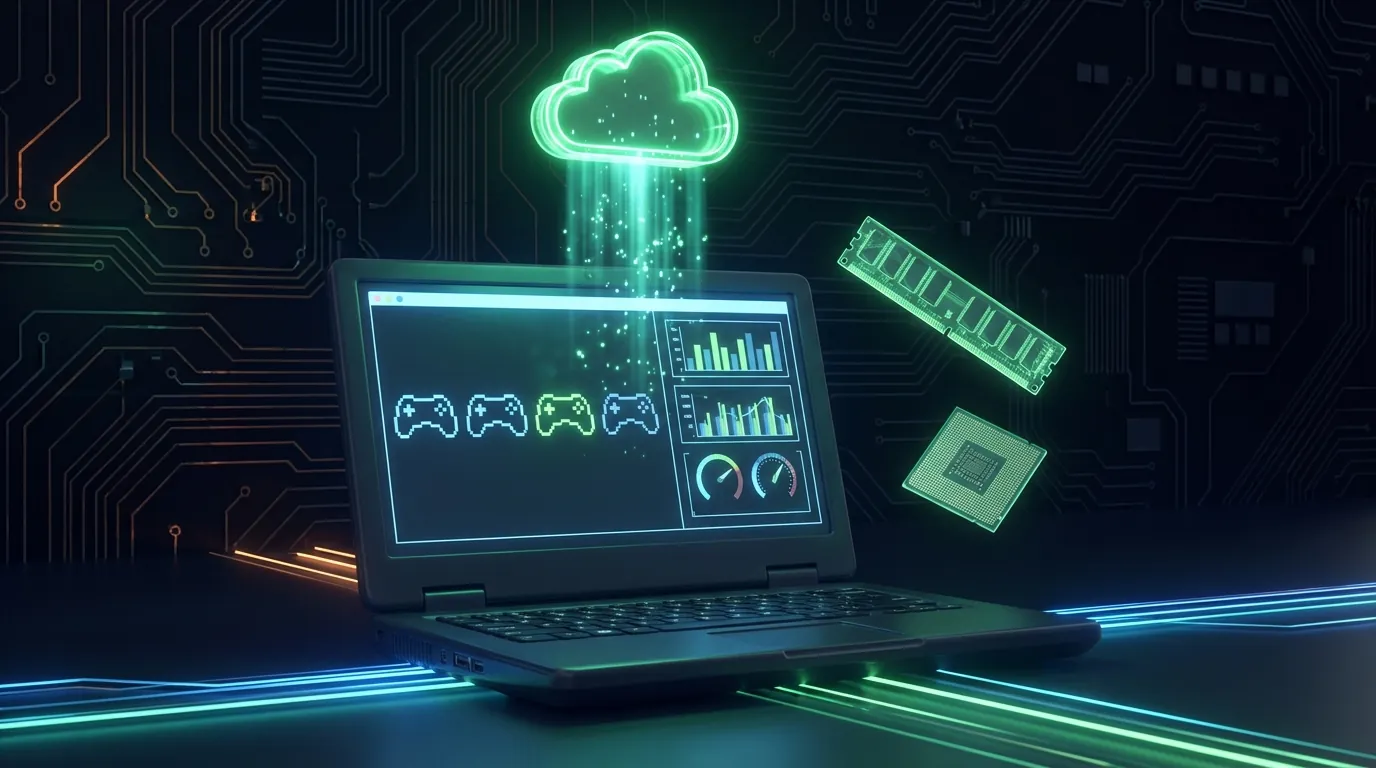
A PC with just 2–4GB RAM can still run Android games — if you pick the right emulator. The 5 lightest Android emulators for low-end PCs in 2026 are LDPlayer 9 Lite, MEmu Play Lite, MuMu Nebula (runs on just 1GB RAM), NoxPlayer Basic, and BlueStacks 5 Lite.
This guide explains why emulators lag on weak PCs (binary translation overhead consumes 15–30% of CPU), reviews all 5 emulators based on real-world testing, and introduces Cloud Phone — a way to run Android on any PC without powerful hardware.
In the Cloud Phone vs Emulator comparison, the architectural differences between ARM and x86 were analyzed in detail. This article focuses on the practical impact of those differences on low-end PCs — and how to choose the best emulator (or alternative) for your setup.
Why Do Android Emulators Lag on Low End PCs?
Android emulators lag on weak PCs for 2 technical reasons: binary translation consumes 15–30% of CPU power, and emulators share RAM with the operating system — leaving very little headroom for both Windows and Android to run smoothly.
Binary Translation — ARM Instructions Converted to x86 in Real Time
Android games and apps are compiled for ARM chips — but PCs use x86 CPUs. Emulators must translate every ARM instruction to x86 before the CPU can execute it. This binary translation process consumes 15–30% of CPU performance — on a powerful PC, this overhead is negligible. On a Celeron or Pentium dual-core, 30% overhead causes both the emulator and Windows to lag noticeably.
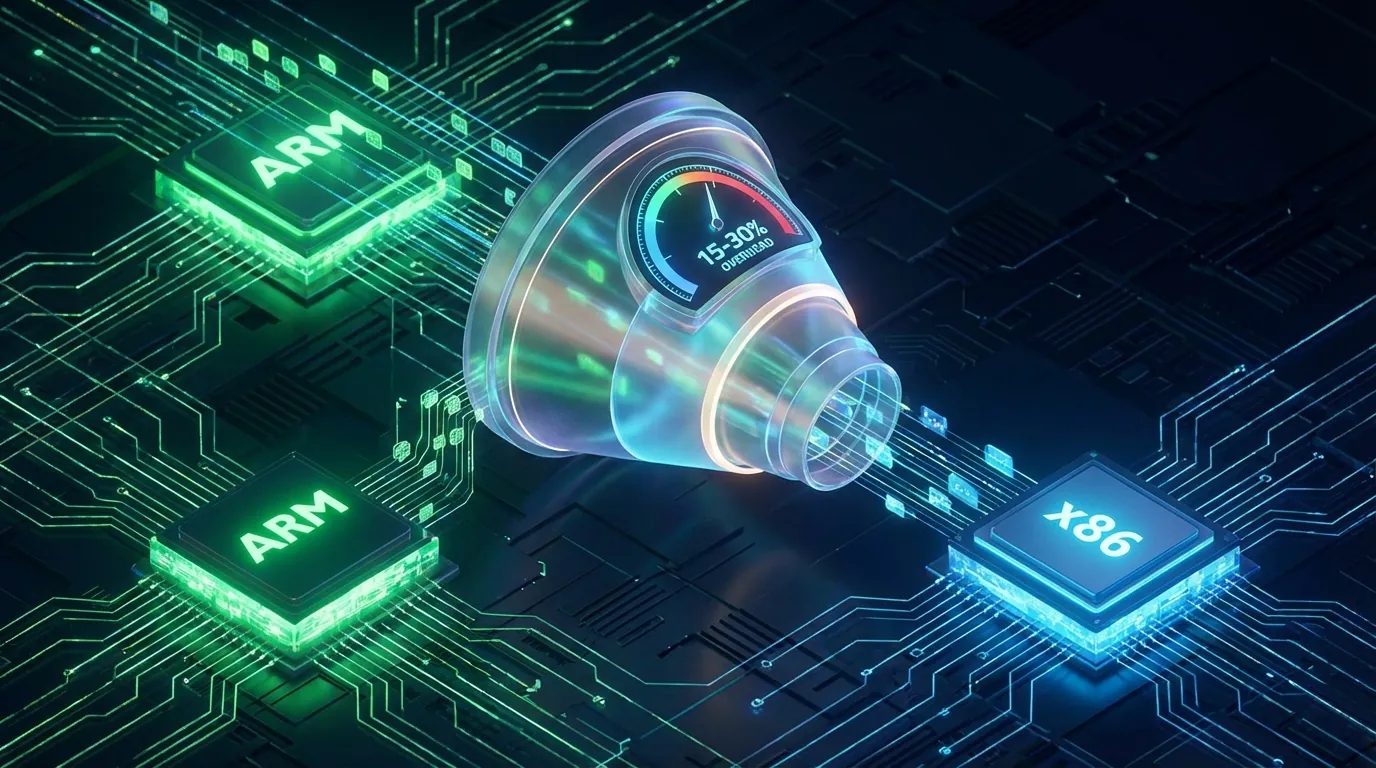
A simple analogy: binary translation is like mentally translating every sentence from English to your native language before you understand it — the weaker your "processor" (in this case, your PC), the more each sentence slows you down.
RAM and CPU — Emulators Share Resources With the OS
Android emulators need 1–2GB RAM at minimum (the allocation given to the Android instance). Windows needs another 1.5–2GB. A PC with 4GB RAM has 0–0.5GB left for everything else — enough to open 1 Chrome tab but not enough for multitasking.
PCs with 2GB RAM can barely run standard emulators at all — only a handful offer "lite" modes that allocate 512MB–768MB RAM to Android, trading significant performance for basic functionality.
Minimum Specs to Run an Android Emulator Smoothly
📌 Pro Tip: Enabling VT-x/AMD-V in BIOS improves emulator performance by 30–50% — this hardware virtualization feature is supported by most CPUs from 2012 onward. Check Task Manager → Performance → Virtualization: Enabled.
5 Lightest Android Emulators for Low End PCs (2026)
All 5 emulators were tested on the same PC: Intel Core i3-6100 (2 cores / 4 threads), 4GB DDR4, Intel HD 530 — running Subway Surfers to measure boot time, RAM usage, and FPS. System requirements were verified against each emulator's official page (ldplayer.net, memuplay.com, mumuplayer.com, bignox.com, bluestacks.com).
LDPlayer 9 Lite — Best for Gaming on a 2GB RAM PC
LDPlayer 9 Lite is a stripped-down build designed specifically for weaker hardware.
- Min specs: 2GB RAM, dual-core CPU, Intel HD Graphics
- RAM usage: 680MB (idle), 1.1GB (in-game)
- Boot time: 18 seconds (on i3-6100)
- FPS (Subway Surfers): 28–30 FPS stable
- Pros: Strong keymapping, Android 9 support, large community
- Cons: Ads in the interface, some newer games incompatible
- Best for: Casual gamers running lightweight games on older PCs
MEmu Play Lite — Flexible for Both Games and Apps
MEmu ships 3 Android versions (5.1, 7.1, 12) in a single installer — offering flexibility across different app requirements.
- Min specs: 2GB RAM, dual-core, Intel/AMD GPU
- RAM usage: 750MB (idle), 1.2GB (in-game)
- Boot time: 22 seconds
- FPS (Subway Surfers): 25–28 FPS
- Pros: Multiple Android versions, strong GPS spoofing, easy root access
- Cons: Heavier than LDPlayer Lite, less frequent updates
- Best for: Users needing legacy app support (Android 5.1) alongside newer apps
MuMu Nebula — Ultra-Light, Runs on 1GB RAM
MuMu Nebula (global edition) is the lightest emulator on this list — it runs on PCs with just 1GB of free RAM.
- Min specs: 1GB RAM (free), single-core 1.5GHz
- RAM usage: 450MB (idle), 850MB (in-game)
- Boot time: 15 seconds
- FPS (Subway Surfers): 25–30 FPS
- Pros: Ultra-light, fastest boot time, clean interface
- Cons: Limited customization, basic keymapping, cannot handle graphically intensive games
- Best for: Ultra-low-end PCs (1–2GB RAM), simple apps, or casual games
NoxPlayer Basic — Simple Interface, Stable on 4GB RAM
NoxPlayer has been available since 2015 — its Basic edition prioritizes stability over peak performance.
- Min specs: 2GB RAM, dual-core, DirectX 9.0c
- RAM usage: 800MB (idle), 1.3GB (in-game)
- Boot time: 25 seconds
- FPS (Subway Surfers): 22–25 FPS
- Pros: Most stable, fewest crashes, easy-to-use interface
- Cons: Lower FPS than LDPlayer/MuMu, slower update cycle
- Best for: Users who prioritize stability over performance, social media apps
BlueStacks 5 Lite — Optimized Build for Weak Hardware
BlueStacks 5 Lite is a "Performance" mode that activates automatically when low-end hardware is detected.
- Min specs: 2GB RAM, dual-core, Intel/AMD GPU
- RAM usage: 850MB (idle), 1.4GB (in-game)
- Boot time: 28 seconds
- FPS (Subway Surfers): 20–24 FPS
- Pros: Established brand, strong support, extensive game library
- Cons: Heaviest of the 5, more ads, needs 4GB RAM for stable use
- Best for: Existing BlueStacks users who need support for the latest games
5-Emulator Comparison — RAM, CPU, and Performance
Source: Min specs from official pages (ldplayer.net, memuplay.com, mumuplayer.com, bignox.com, bluestacks.com). Boot time, RAM usage, and FPS measured on Intel i3-6100, 4GB DDR4, HD 530.
📌 Pro Tip: If your PC has under 4GB RAM, go with MuMu Nebula or LDPlayer Lite. With 4GB+, all 5 emulators are viable — the difference comes down to features and interface preference.
Emulator Limitations on Low End PCs — 3 Unsolvable Problems
Even with the lightest emulator installed, low-end PCs face 3 limitations that no software settings can fix — these are hardware constraints, not software issues.
Multitasking Is Not Feasible — Emulators Consume All Resources
Running 1 emulator on a 4GB RAM PC = resources exhausted. Opening Chrome, Discord, or OBS alongside it forces Windows to swap RAM to disk — the entire system crawls. Running an AFK game 24/7 while using the PC for other work is practically impossible on weak hardware.
Graphically Demanding Games — FPS Drops Despite Optimization
Games like Genshin Impact, PUBG Mobile, or Night Crows require a capable GPU — Intel HD Graphics cannot handle 3D rendering even at the lowest settings. FPS hovers between 5–12 FPS with constant stuttering and crashes after 10–15 minutes.
Ban Risk — Anti-Cheat Systems Detect Emulators
Most mobile games include anti-cheat that detects emulators through CPU architecture checks, sensor data verification, and file system scans. Even when emulators attempt to mask their fingerprint, the libhoudini.so file (Intel binary translator) and fixed sensor values (0.0 instead of natural jitter) are difficult to hide completely. Running games 24/7 on an emulator means accepting the risk of detection.
If your PC hardware cannot be upgraded and emulators fall short — there is one more solution that does not depend on your local hardware at all.
Cloud Phone — Run Android on Any PC Without Powerful Hardware
How Cloud Phone Works — Processing on Server, Streaming to Your PC
A cloud phone is a real Android device running in a data center — games and apps are processed on ARM chips in the server, with video and audio streamed to your PC via a web browser. Your PC only acts as a display — even a 10-year-old laptop with 2GB RAM can receive a smooth video stream.
No heavy software installation required, no powerful GPU needed, no large RAM allocation. Access through any browser (Chrome, Firefox, Edge) or a lightweight app under 50MB.
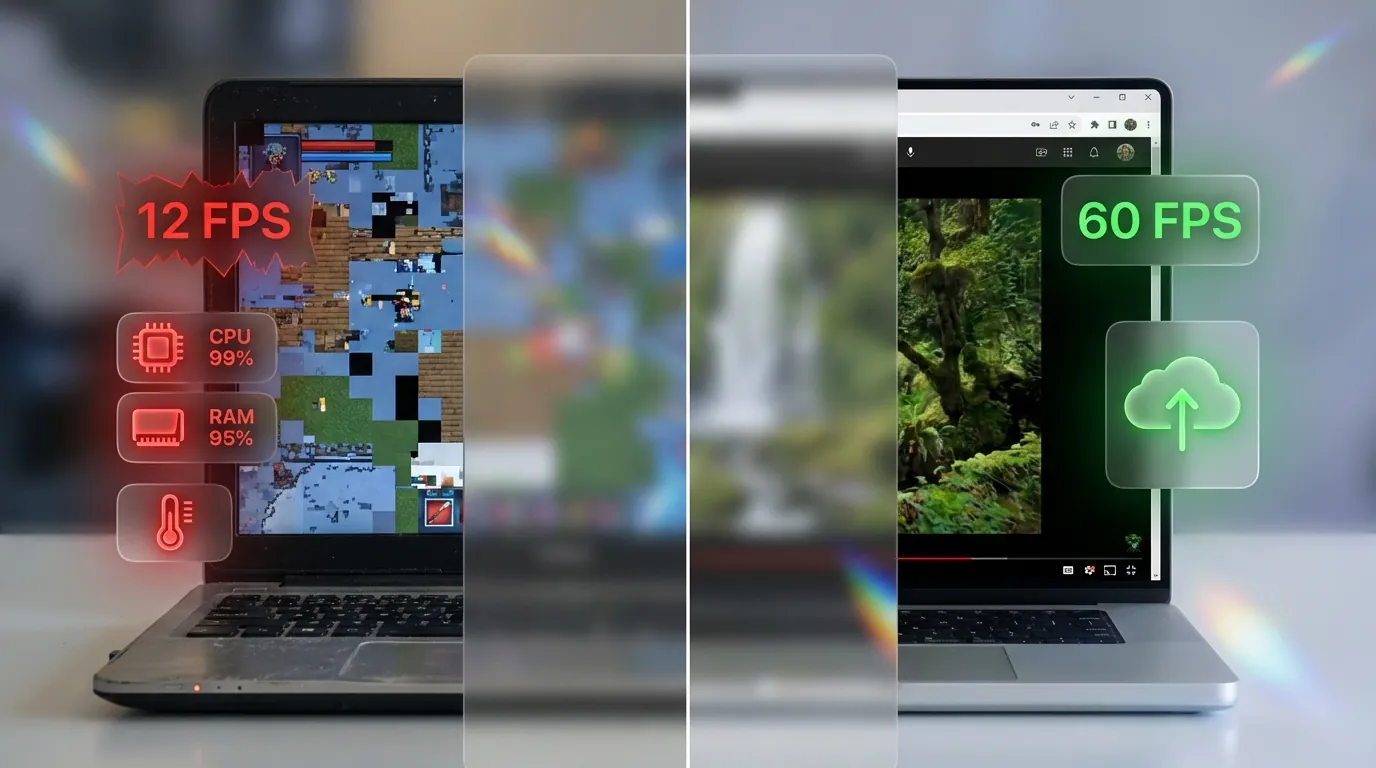
3 Reasons Cloud Phone Beats Emulators for Weak PCs
- Zero local resources: Your PC's CPU, RAM, and GPU remain untouched — you can use your PC normally while Android runs on the cloud
- No graphics limitations: Demanding games like Genshin Impact run at max settings on the ARM server — your weak PC only receives a video stream
- AFK 24/7 without keeping your PC on: Cloud phones run continuously in the data center — shut down your PC, the game keeps running. Emulators stop when you power off
As analyzed in the Cloud Phone vs Emulator comparison, this undetectable cloud phone approach based on real ARM hardware minimizes the risk of anti-cheat detection — because each cloud phone carries genuine IMEI, sensor data, and hardware fingerprints.
Start your cloud phone trial at app.xcloudphone.com — run demanding Android games on any PC without upgrading your hardware.
Frequently Asked Questions
"Can BlueStacks Run on a PC With 2GB RAM?"
BlueStacks 5 Lite runs on a 2GB RAM PC but with severely limited performance — FPS reaches only 15–20 on casual games, and the system lags when any other application is opened. MuMu Nebula or LDPlayer Lite are lighter options for 2GB RAM machines.
"Which Emulator Is the Lightest for PCs Without a Dedicated GPU?"
MuMu Nebula is the lightest emulator — it runs on Intel HD Graphics (integrated GPU) with just 1GB of free RAM. Boot time is only 15 seconds and RAM usage is the lowest among all 5 tested emulators (850MB during gameplay).
"Does Cloud Phone Require Any Software Installation on PC?"
Cloud phone requires no software installation — access it directly through any web browser (Chrome, Firefox, Edge). Some services offer a lightweight app under 50MB for a better experience, but it is not mandatory.
"Can You Run Android Apps on PC Without an Emulator?"
3 ways to run Android apps on PC without an emulator: Cloud Phone (real Android devices in the cloud, streamed to your PC), Windows Subsystem for Android (Windows 11 only), and web versions of apps (when available — e.g., TikTok Web, Instagram Web).
"Do Emulators Get Banned in Online Games?"
Emulators carry a real risk of being banned in games with anti-cheat — PUBG Mobile, Free Fire, and many others actively detect emulators through CPU architecture checks and file system scans. Ban rates vary by game: casual games (low risk), competitive games (high, 30–70%).
Emulators Are a Temporary Solution — Cloud Phone Is the Long-Term Trend
The 5 emulators in this guide are the best options for weak PCs right now — but as Android games and apps grow heavier (Unreal Engine 5 for mobile, AI features), emulators on low-end hardware will struggle to keep up. Cloud phone solves this problem permanently: hardware upgrades happen server-side, and your PC never needs to change.
Try it free at app.xcloudphone.com — run Android on any PC, any config.