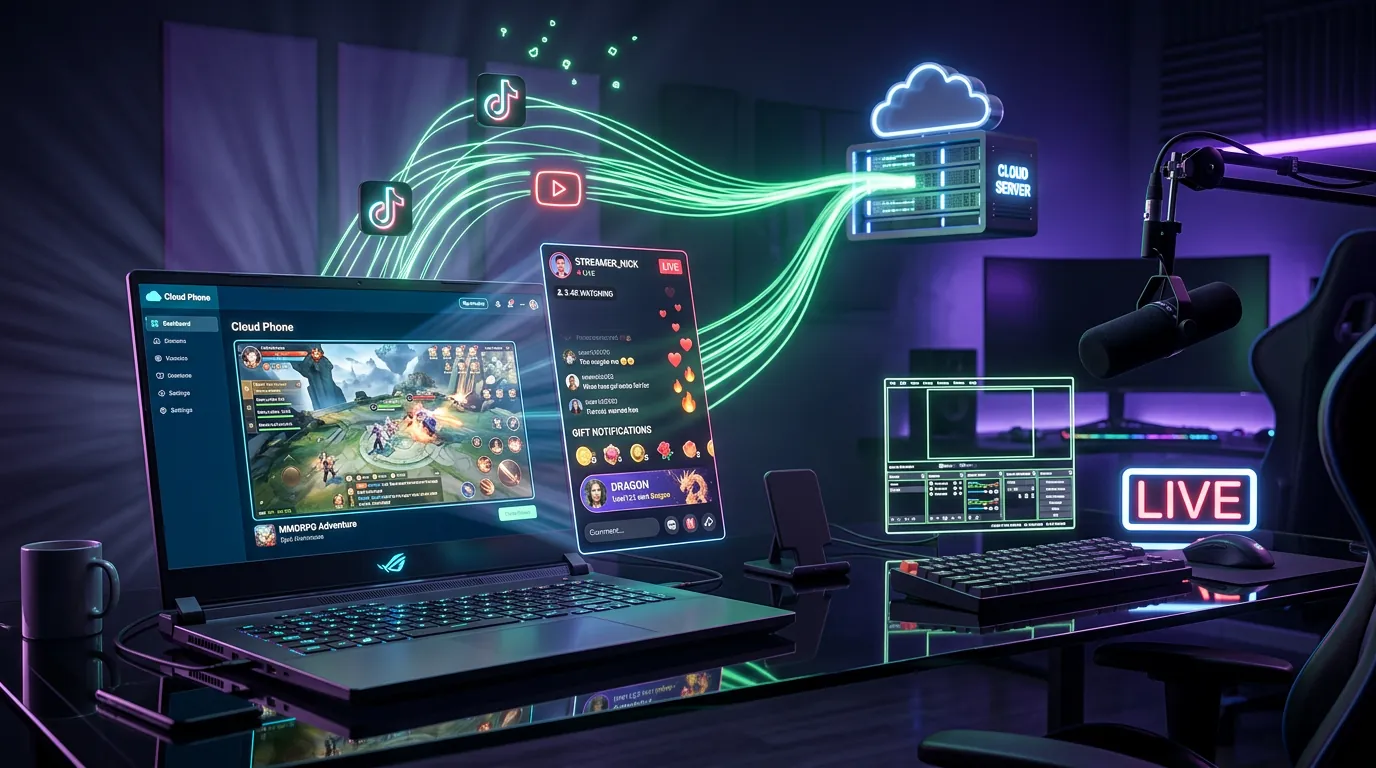
Mobile game streamers typically need a high-end personal device, a $100-$200 capture card, and a PC—or they must accept severe lag, overheating, and a dead battery within two hours. Live streaming from an undetectable cloud phone broadcasts a mobile game running natively on real Android hardware directly to your platform—eliminating the need for capture cards, preventing overheating, and enabling 24/7 uptime.
The core architecture and overall benefits of 24/7 cloud gaming are detailed in our comprehensive guide; this article focuses entirely on specific streaming setups—two distinct methods (direct streaming from the TikTok/YouTube apps or screen mirroring via OBS Studio), 24/7 automated sleep streaming for monetization, a 7-point setup comparison, and optimal streaming settings.
Method 1 — Direct Stream from TikTok or YouTube Apps on Cloud Phone
The simplest approach: install TikTok or YouTube directly onto the cloud phone, activate the Mobile Gaming Live feature, and broadcast the active game natively to the platform—bypassing the need for a PC or any third-party streaming software.
Setup TikTok Live Gaming on a Cloud Phone
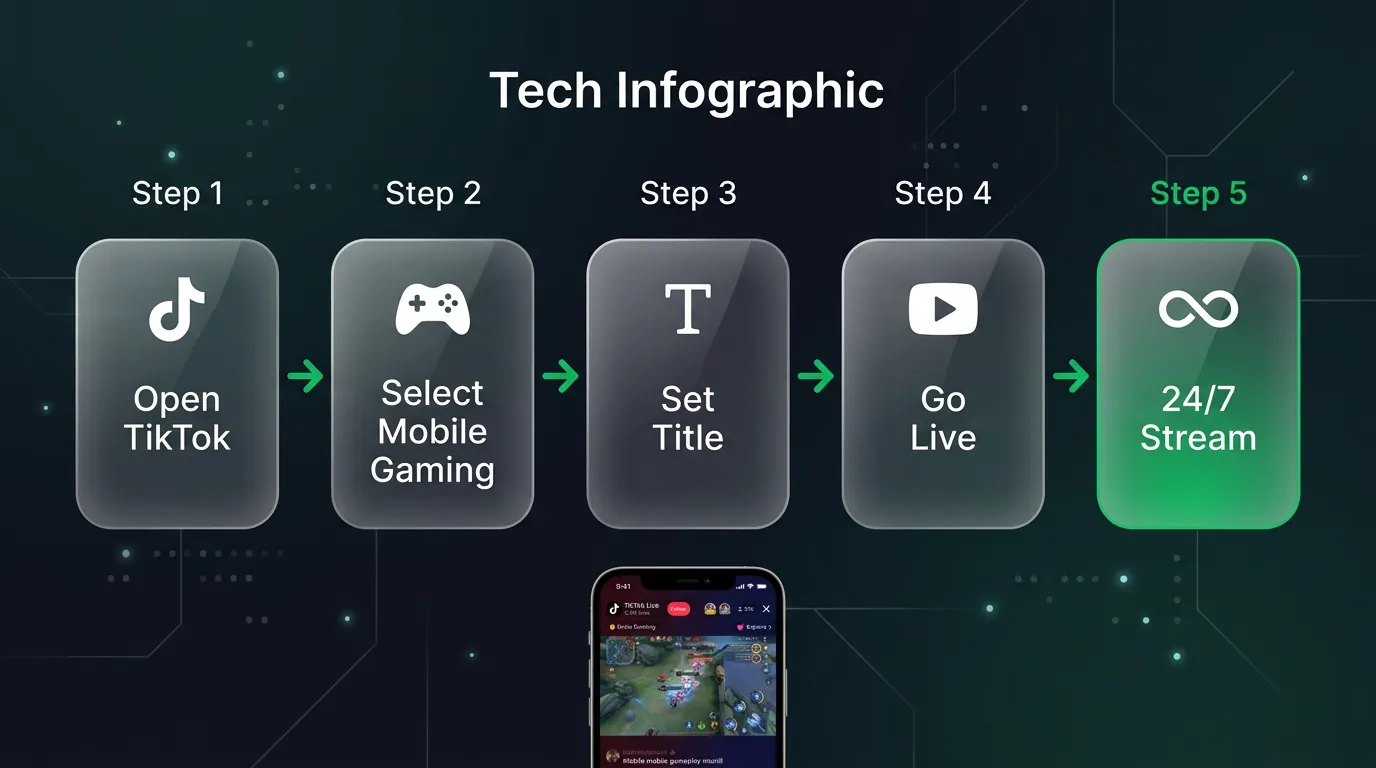
Setting up TikTok Live Gaming on a cloud phone requires 5 steps—all executed entirely within the pre-installed TikTok application.
- Open TikTok on the cloud phone → tap the "+" icon → swipe to the "Live" tab
- Select "Mobile Gaming" → the cloud phone automatically shares the screen of the game running in the background
- Write an engaging title → select the appropriate game category (Genshin Impact, MIR4, and Night Crows)
- Press "Go Live" → wait for the 3-second countdown → switch back to the game window
- Continuous 24/7 Broadcast on the cloud phone—you can power off your local laptop or personal phone, and the stream remains live on TikTok
Requirements: Your TikTok account must command 1,000+ followers and you must be 18+ to unlock Live access. Brand new accounts lacking followers cannot broadcast—you must build audience volume through short-form video content first.
3 tips to optimize your TikTok stream on a cloud phone:
- Select "Other game" — TikTok will apply a generic gaming overlay if your specific title is missing from the directory
- Rotate to landscape mode for horizontal games (Black Desert Mobile, Genshin Impact, and PUBG Mobile)—ensure you adjust the cloud phone interface before initiating the Live session
- Disable notifications utilizing Do Not Disturb mode—preventing accidental exposure of personal data or disruptive pop-ups during the broadcast
Setup YouTube Live from a Cloud Phone
YouTube Live demands 50+ subscribers and a verified channel status—configuring it on a cloud phone requires just 4 steps.
- Open YouTube → tap the "Create" (+) icon → select "Go Live"
- Select Screencast → the cloud phone shares the entire active game screen
- Configure privacy settings (Public or Unlisted), and input an SEO-optimized title and description
- Press "Go Live" to initiate the broadcast—the stream runs continuously on the cloud phone
Requirements: Your YouTube channel needs 50+ subscribers, a verified email address, and no live streaming restrictions applied within the last 90 days. YouTube automatically generates VODs (Video on Demand)—archiving every stream for convenient reviewing and reposting.
📌 Pro Tip: The automatic YouTube VOD system provides a massive advantage over TikTok—every live stream instantly converts into a new permanent video on your channel, accumulating crucial watch hours for the YouTube Partner Program.
Method 2 — Screen Mirror Cloud Phone to OBS for Multi-Platform Streams
For professional streamers: mirror the cloud phone's display onto a PC, capture it via OBS Studio, integrate custom overlays, webcams, and chat widgets, then simultaneously broadcast to TikTok, YouTube, and Twitch from a single unified source.
Setup Screen Mirroring: Cloud Phone to PC
There are 3 distinct mirroring methods to project a cloud phone onto a PC—select the optimal approach based on your technical expertise and latency requirements.
- Web browser: Open the cloud phone dashboard in Google Chrome → utilize OBS Window Capture to grab the specific browser tab—this is the simplest method requiring zero additional software
- scrcpy (open-source software): Mirror Android devices via ADB queries → delivers the lowest possible latency (~30ms) with zero lag—requires ADB driver installation, making it ideal for streamers with technical experience
- Built-in mirroring (if supported by your provider): Direct localized streaming to your PC—XCloudPhone natively supports screen sharing via WebRTC, allowing OBS to capture the direct window stream
Configure OBS Studio for Game Streaming
Configuring OBS Studio for a cloud phone requires tuning 5 primary settings—the table below contrasts the optimal values for TikTok versus YouTube.
The table below lists the 6 critical OBS settings you must configure, showing differing values depending on your target platform:
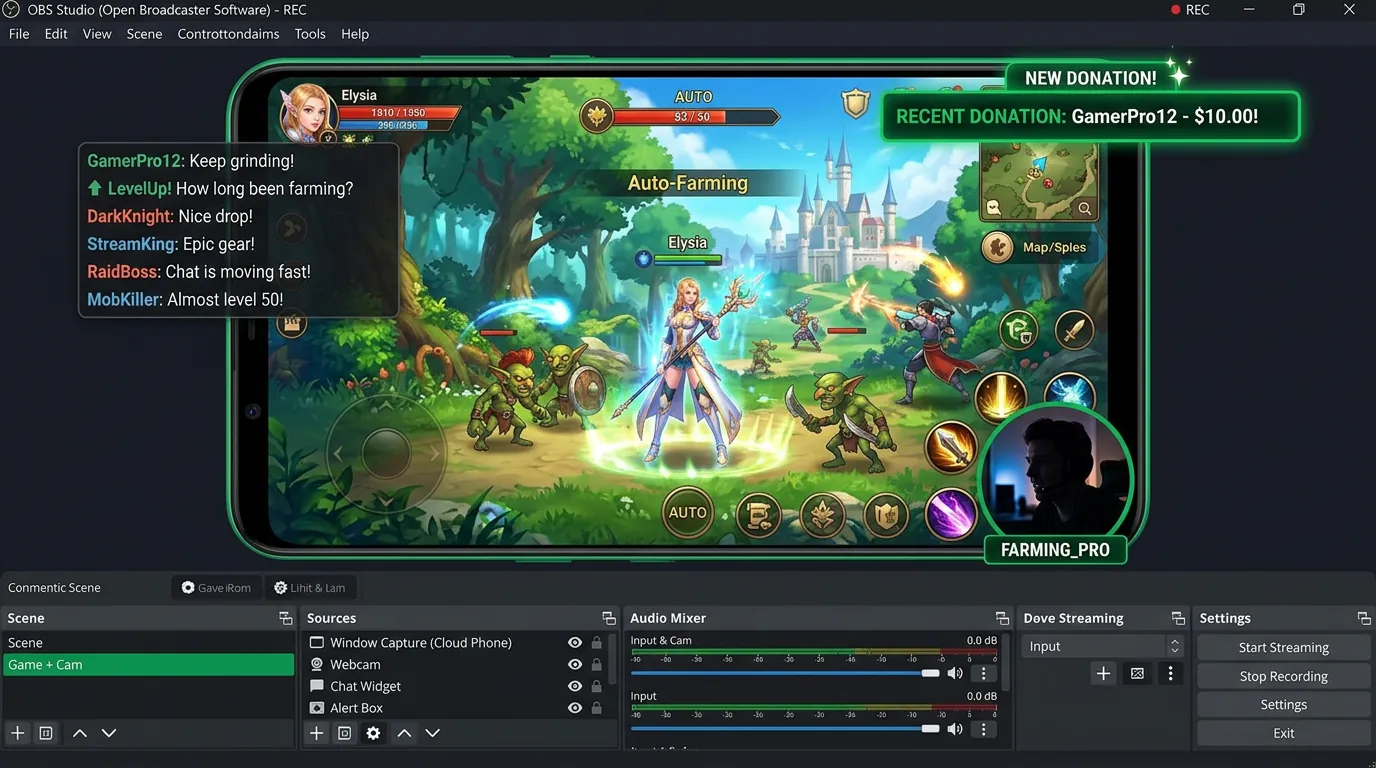
Professional broadcasting requires 3 supplemental OBS sources alongside the core game window:
- Window Capture: The active game screen mirrored from the cloud phone
- Video Capture: Your webcam overlay (typically nested in the bottom corner)
- Browser Source: Your live chat widget, dynamic alert overlays, and donation tickers
Simultaneous Multi-Platform Streaming
1 Cloud Phone → OBS → TikTok + YouTube + Twitch simultaneously utilizing a service like Restream or Streamlabs Multistream. The workflow: OBS pushes the unified stream to the Restream server → Restream duplicates and distributes it concurrently to 3+ platforms.
Crucial Advice: TikTok algorithmically prioritizes vertical 720p, whereas YouTube heavily favors horizontal 1080p—utilize the dual scene functionality in OBS: Scene 1 (vertical) for TikTok, Scene 2 (horizontal) for YouTube. Restream will automatically route the correct scene to the correct platform.
Stream Setup Comparison: Cloud Phone vs Normal Phone vs Capture Card
A real cloud phone entirely replaces both traditional setups—streaming directly from a personal device or purchasing a dedicated $100-$200+ capture card—at a minimal cost of just $10/month while guaranteeing 24/7 uptime.
The table below contrasts 7 critical criteria across the 3 standard mobile game streaming setups:
A cloud phone provides the 4 most significant advantages for mobile game streaming:
- Maintains low operating temperatures → preventing FPS or quality drops during extended streams—standard phones lose 20-40% of their visual fidelity after just 2 hours
- Eliminates the capture card requirement → immediately saving you $100-$200 in upfront hardware costs
- Enables 24/7 continuous broadcasting → facilitating marathon stream events and AFK sleep streams—normal phones die after 2-4 hours
- Permits remote management → allowing you to start or stop the stream from any laptop globally, monitoring stream health via the cloud dashboard
Current Limitation: Controlling a cloud phone via WebRTC introduces 30-80ms of latency—this is perfectly optimal for AFK streaming, casual gameplay, or a phone farm setup, but it is not ideal for highly competitive PvP titles (like ranked PUBG Mobile or Arena of Valor).
Beyond Gameplay: What Else Do Cloud Phones Offer Streamers?
Beyond standard gameplay streaming, undetectable cloud phones unlock two entirely new monetization models for content creators: 24/7 AFK sleep streams generating passive income via viewer gifts, and 12-24 hour marathon event streams unhindered by battery life or thermal throttling. These two specific models elevate the cloud phone from a simple streaming tool into a content business platform—especially on TikTok, where the sleep stream meta is exploding.
Sleep Streams and 24/7 Marathons: The New Monetization Trend
The sleep stream—an exponentially growing trend on TikTok—pairs flawlessly with a cloud phone: an AFK game runs perpetually 24/7 on the cloud hardware, the TikTok Live remains actively broadcasting, and viewers donate premium gifts whenever a rare event triggers or a boss spawns.
AFK Game Sleep Streams — How Do They Work?
AFK game sleep streams operate on a passive model: the streamer steps away from the monitor—while the cloud phone sustains the active game client and the TikTok Live broadcast endlessly.
The specific operational workflow:
- The streamer "goes to sleep" → the cloud phone runs a massive AFK game (MIR4 auto-farming, Genshin expeditions, Night Crows auto-questing)
- TikTok Live continuously broadcasts the game interface 24/7—viewers watch the automated farming progression, boss spawns, and dynamic server events
- Engaged viewers send TikTok gifts (coins) → triggering specific audio alerts or visual overlays (if the streamer has integrated TikFinity or a similar bot)
- Revenue Potential: Top tier AFK sleep streamers globally (running Genshin or Idle RPGs) consistently generate $100-$500 per night depending entirely on the game's popularity and their baseline viewer retention.
A cloud phone is the absolute perfect hardware for sleep streaming because:
- The stream runs 24/7 without demanding your personal hardware—you shut down your local laptop, and the stream remains live
- AFK games execute natively on ARM processors—preventing visual quality drops or application crashes caused by thermal throttling
- You can power down every device in your home—the cloud phone inside the tier-3 data center sustains both the game and the TikTok Live permanently
- Zero risk of battery bloat or catastrophic overheating—completely eliminating the severe hardware dangers of leaving a physical smartphone streaming under a pillow or on a desk overnight
Marathon Streams — Boss Events and Gacha Live Pulls
A marathon stream involves broadcasting continuously for 12-24 hours during massive game events—the cloud phone sustains the unbroken broadcast without hardware interruption.
4 highly popular use cases for marathon streaming on a cloud phone:
- Boss grinding marathons in MIR4/Night Crows: Streaming 12-24 hours straight during newly released server boss events—viewers spectate the progression and donate to support the grind
- Gacha livestream pulls in Genshin/Honkai: Broadcasting massive gacha pulling sessions whenever a new banner drops—generating highly viral content with maximum viewer engagement
- New game launch streams: Live streaming a brand new game release 24/7—which is particularly effective for capitalizing on the hype surrounding new mobile MMORPGs
- Reaction streams: Watching esports tournaments directly through the cloud phone browser → streaming your local camera alongside the cloud screen—resulting in $0 overhead for highly engaging content
Optimal Stream Settings: Bitrate, Resolution, and Audio
Final stream quality depends entirely on 3 core components: your output resolution, upload bitrate, and audio configuration—tuning these correctly ensures viewers see crisp gameplay without buffering.
The table below contrasts 5 vital stream settings across 3 distinct tiers: Casual, Pro, and 24/7 Marathon:
3 critical considerations when finalizing your settings:
- TikTok natively optimizes for vertical 720p—pushing 1080p is largely unnecessary, as the vast majority of mobile viewers are on small screens and TikTok's backend compression forces it down to 720p anyway
- YouTube fully supports 1080p60 but absolutely requires a stable 10+ Mbps upload pipe—always utilize a hardwired Ethernet connection rather than Wi-Fi for your PC when capturing cloud phone streams
- 24/7 Marathon streams should strictly utilize 720p30 → this deliberately cuts bandwidth consumption by 40% compared to 1080p60, ensuring the stream remains flawlessly stable for 24 hours without buffering
FAQ — Frequently Asked Questions
"How many followers do I need to go Live on TikTok?"
1,000 followers and being 18+ years old are the mandatory requirements to unlock Live broadcasting privileges on TikTok. YouTube Live, however, only requires 50 subscribers and a verified channel—a significantly lower barrier to entry.
"Will streaming from a cloud phone to TikTok get me banned?"
No—real cloud phones run genuine natively-installed Android OS, meaning TikTok registers the connection identically to any normal mobile device. You will only face penalties or bans if your actual content violates TikTok's Community Guidelines (violence, explicit content, and spam).
"Is streaming games 24/7 on TikTok restricted?"
TikTok imposes no official time limits on Live sessions. However, excessively long AFK streams suffering from low engagement (minimal comments, zero gifts) may be algorithmically deprioritized—resulting in the platform feeding you fewer organic viewers. Recommendation: periodically interact with your comment section every 2-3 hours to artificially sustain your engagement rate.
"Do I need high-speed internet to stream from a cloud phone?"
A minimum of 5 Mbps upload is required for a stable 720p30 stream. We strongly recommend 10 Mbps upload for high-fidelity 1080p60 broadcasting. Always connect via 5GHz Wi-Fi or hardwired Ethernet for the PC running OBS—strictly avoid 2.4GHz Wi-Fi due to severe latency and frame jitter.
"Does a cloud phone support TikTok visual overlays?"
Yes, through both direct streaming and OBS. Method 1 (direct streaming) grants access to TikTok's built-in effects—including generic stickers, basic filters, and beauty modes. Method 2 (OBS Studio) unlocks total customization—allowing for professional overlays, dynamic donation alerts, custom chat widgets, designated webcam layouts, and animated scene transitions. Method 2 is heavily recommended for streamers intent on building a professional personal brand.
"Can I use a cloud phone to stream competitive PvP (ranked matches)?"
We do not recommend cloud phones for high-rank PvP—the inherent 30-80ms WebRTC latency creates a highly noticeable micro-disadvantage in twitch-reflex titles (PUBG Mobile, Arena of Valor, and Call of Duty Mobile). A cloud phone is flawlessly optimized for: casual streaming, AFK sleep farming, massive PvE marathon events, and live gacha pulls—broadcasts that never demand split-second reaction times.
Turn Your Cloud Phone Into a Personal Streaming Studio
A cloud phone upgrades mobile game live streaming from a cumbersome requirement of "a $200 capture card + a high-end phone + a PC" into a completely streamlined "$10/month, 24/7 uptime, zero overheating" reality. The 2 distinct methods—broadcasting directly from the native TikTok/YouTube applications or executing a professional screen mirror via OBS Studio—comprehensively cover every possible requirement from casual hobbyists to professional content creators. With automated AFK sleep streaming exploding across TikTok—a real cloud phone remains the only viable tool capable of sustaining 24/7 broadcasts without destroying physical hardware.
Build your personal streaming studio using XCloudPhone — starting at just $10/device/month.
References:
- TikTok Live Eligibility Requirements — TikTok Creator Portal
- YouTube Live Streaming Requirements — YouTube Help Center
- OBS Studio Documentation — Open Broadcaster Software
- Restream Multi-Platform — Restream Documentation
- XCloudPhone — Product Documentation